• About   |
  • Advertise |
  • Contact Us
No Result
View All Result
The Second Angle (TSA Magazine)
Advertise
  • Infotainment
    • Sports
    • People
    • Inspiring
  • Entertainment
    • Lifestyle
    • Home & Decoration
  • Buzz
  • Education
  • Travel
  • Finance
  • Healthcare
  • Technology
The Second Angle
No Result
View All Result
  • Infotainment
  • Entertainment
  • Buzz
  • Education
  • Travel
  • Finance
  • Healthcare
  • Technology
Advertisement Advertisement Advertisement
ADVERTISEMENT
Home Technology

How To download HomePod Software 16 Public Beta With Apple iPhone

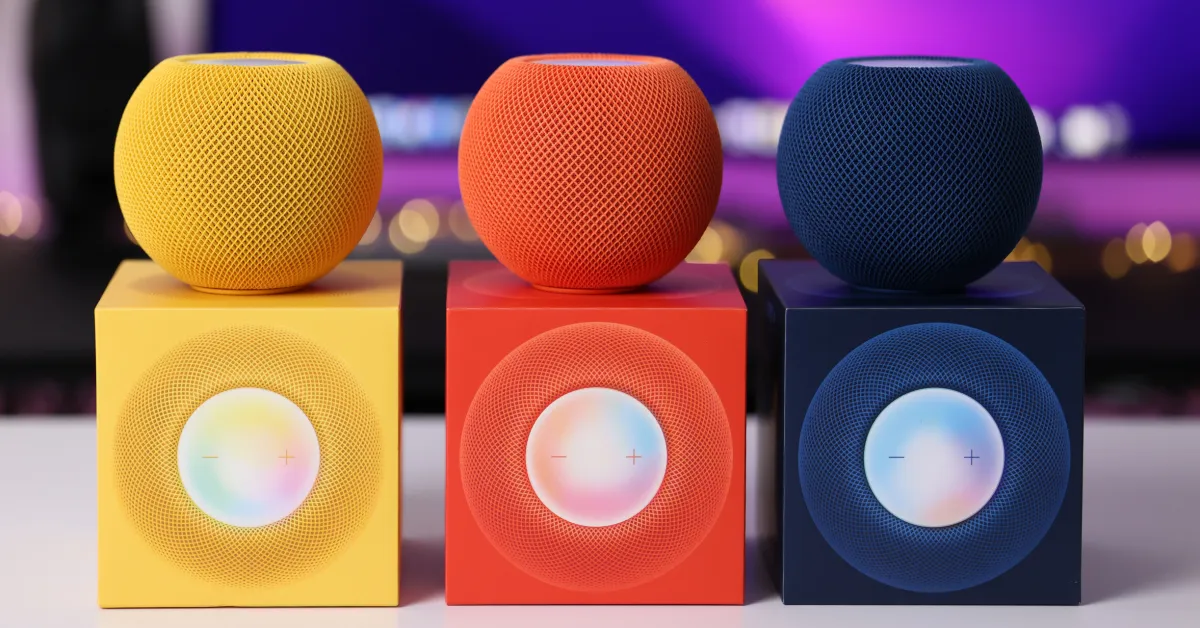
Apple has announced the first beta version of the HomePod Software, as well as updated software releases for other devices such as iOS 16, iPadOS 16, and macOS Ventura. Here is how to download HomePod Software 16 Public Beta with Apple iPhone.

by TSA Desk
October 3, 2022
in Technology
Reading Time: 3 mins read
How To download HomePod Software 16 Public Beta With Apple iPhone

CNBC

Share on FacebookShare on WhatsApp
Advertisement Advertisement Advertisement
ADVERTISEMENT
4 min readGAdd The Second Angle as a preferred source on Google
Key takeaways
Installing HomePod Software 16 Public Beta: Step 1: Launch the Home app on your Apple iPhone, which is running the latest iOS 16 operating...How to get tvOS 16 public beta: To begin, go to beta.apple.com and sign up using your Apple ID (preferably the one you use with...Sign up for Apple's beta program, or sign in if you already have an account.: After you've logged in, go to the menu bar and select the Enrol Your Devices option.

The HomePod Software 16, Apple’s freshly revealed version of the smart speaker, is presently in beta testing. The beta version was previously restricted to an invite-only set of testers, but that has changed, and anybody with the device may now install it. 

As of now, the business has not specified what additional capabilities will be added to the smart speaker, but we anticipate that some fascinating features, such as compatibility with the Matter smart home standard, will be added later this autumn.

Let’s take a quick look at how to download HomePod Software 16 Public Beta with Apple iPhone.

How To Factory Reset Any Windows 11 PC Or Laptop [Step-by-Step Guide]Also readHow To Factory Reset Any Windows 11 PC Or Laptop [Step-by-Step Guide]

We will teach you how to quickly and simply install the newest HomePod Software 16 Public Beta on your HomePod Mini using the Apple iPhone running the new iOS 16 operating system in this step-by-step instruction.

Table of Contents
  • Installing HomePod Software 16 Public Beta
  • How to get tvOS 16 public beta
  • Sign up for Apple's beta program, or sign in if you already have an account.
  • CONCLUSION

Installing HomePod Software 16 Public Beta

Step 1: Launch the Home app on your Apple iPhone, which is running the latest iOS 16 operating system.

Step 2: When the app launches, press the ellipsis or three-dot icon in the upper-right corner of the screen.
How To download HomePod Software 16 Public Beta With Apple iPhone
9 To 5 Mac

Step 3: From the drop-down menu, select “Home Settings.”

Step 4: Scroll down to the “Software Update” option on the Home Settings screen.Step 5: Next, tap on “HomePod Beta Updates” and activate the option next to the HomePod for which you want the beta firmware.

That’s all. Following the steps outlined above, the selected Apple HomePod will begin getting the updated beta version of the software, which will be immediately loaded on the device. The HomePod Software 16 is currently only available for the HomePod Mini and cannot be downloaded on the standard HomePod.

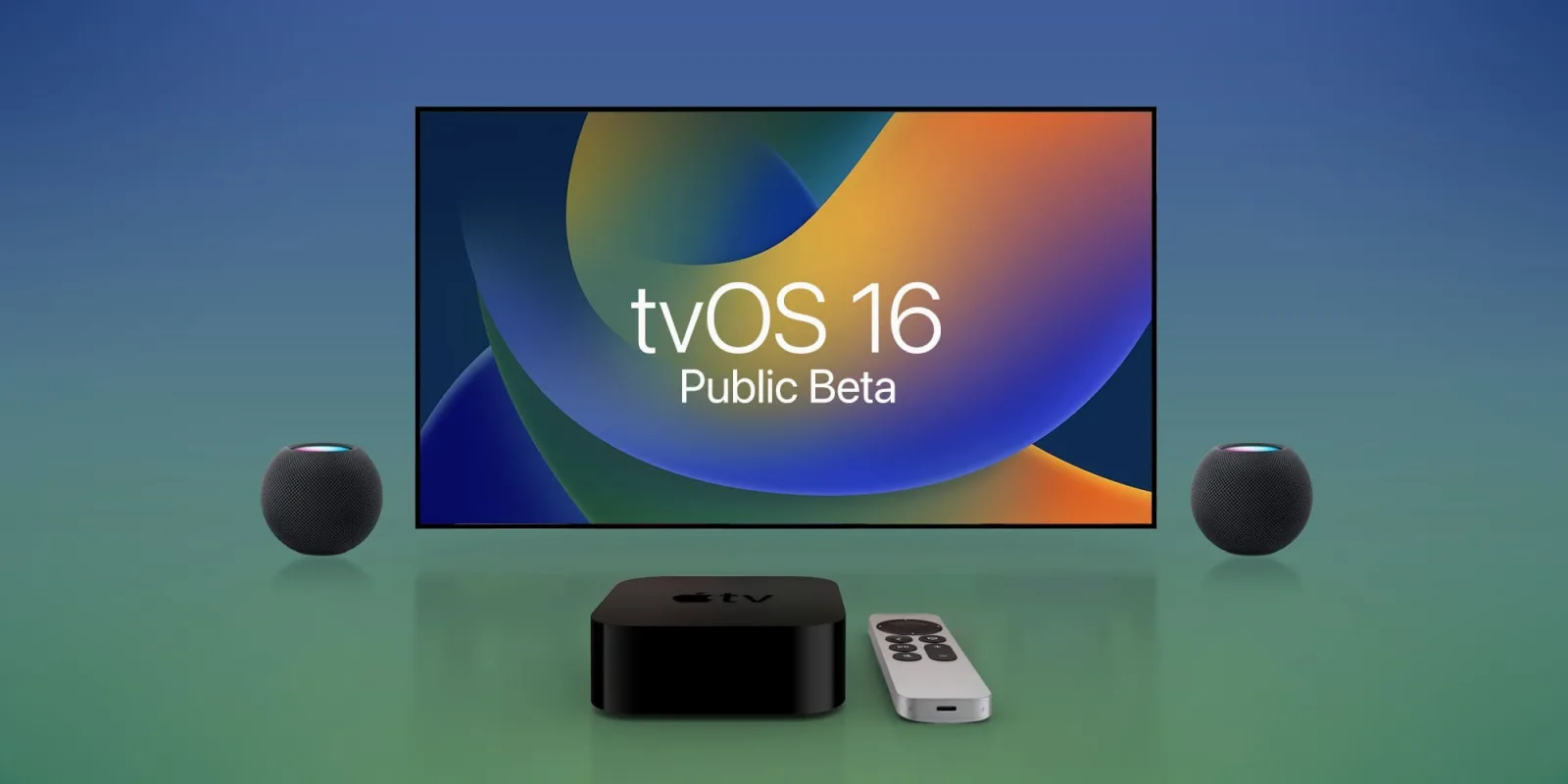
How to get tvOS 16 public beta

To begin, go to beta.apple.com and sign up using your Apple ID (preferably the one you use with your Apple TV). If you have never participated in the Apple Beta Software Program, the update may not display on your Apple TV, so be sure you are enrolled.

Then, proceed as follows:

  • Open the Apple TV Settings app.
  • Navigate to the System menu.
  • Select Software Updates.
How To download HomePod Software 16 Public Beta With Apple iPhone
9 To 5 Mac
  • Select the Get Beta Updates option.
  • If you see any changes in the tvOS 16 public beta or any of Apple’s other betas today, please let us know in the comments below or on Twitter @9to5Mac. Stay tuned to 9to5Mac for comprehensive hands-on coverage of the releases as they become available.

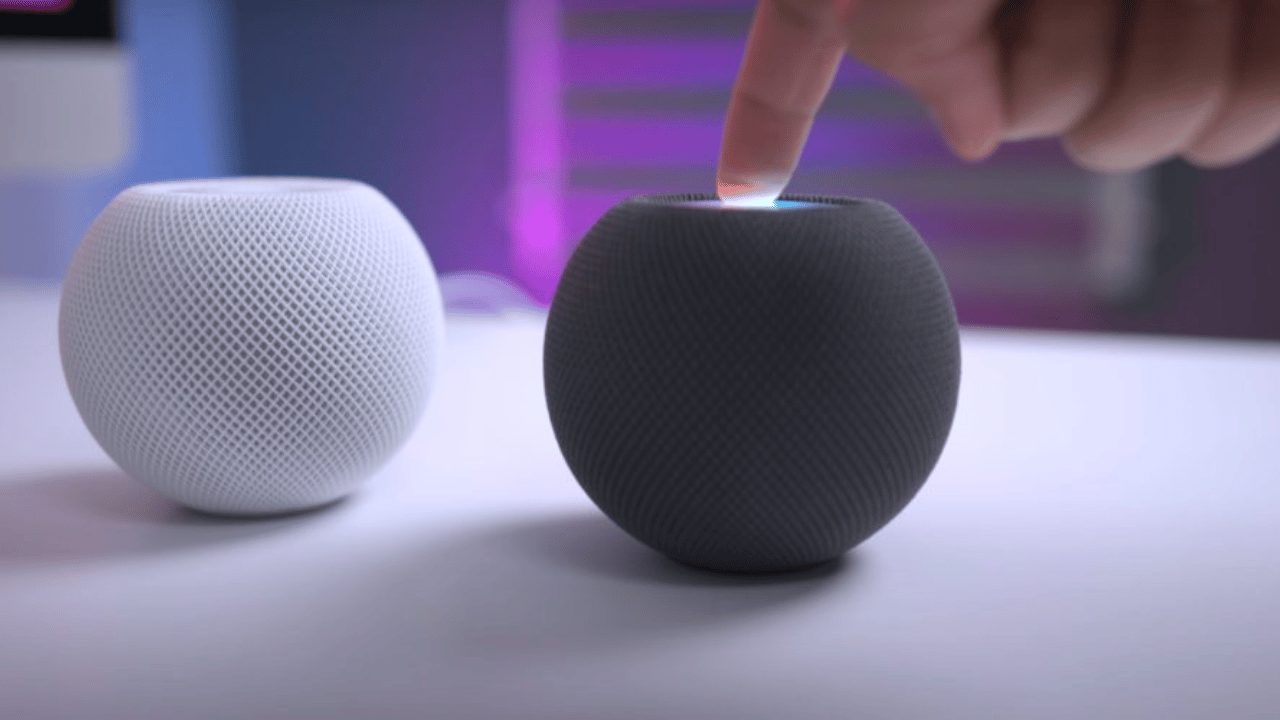
The public beta is currently only accessible for HomePod small speakers. We’re not sure if Apple’s discontinued full-sized HomePod will be upgraded to 16. Follow these procedures to receive the software update for your mini:

Sign up for Apple’s beta program, or sign in if you already have an account.

After you’ve logged in, go to the menu bar and select the Enrol Your Devices option.

In the list of software betas, choose HomePod Software.

If you haven’t already, you must enroll your iPad or iPhone and be running the iOS 16 Public Beta on one of these devices. (The HomePod Software 16 cannot be downloaded without an iOS device running iOS 16.)
How To download HomePod Software 16 Public Beta With Apple iPhone
Trend Blog

Once you’ve installed the public beta on your iOS device, launch the Home app, hit the Home symbol in the upper left corner, scroll down, and tap Software Update.

Enroll the desired HomePod mini in the beta program (you can choose several if you have more than one).

CONCLUSION

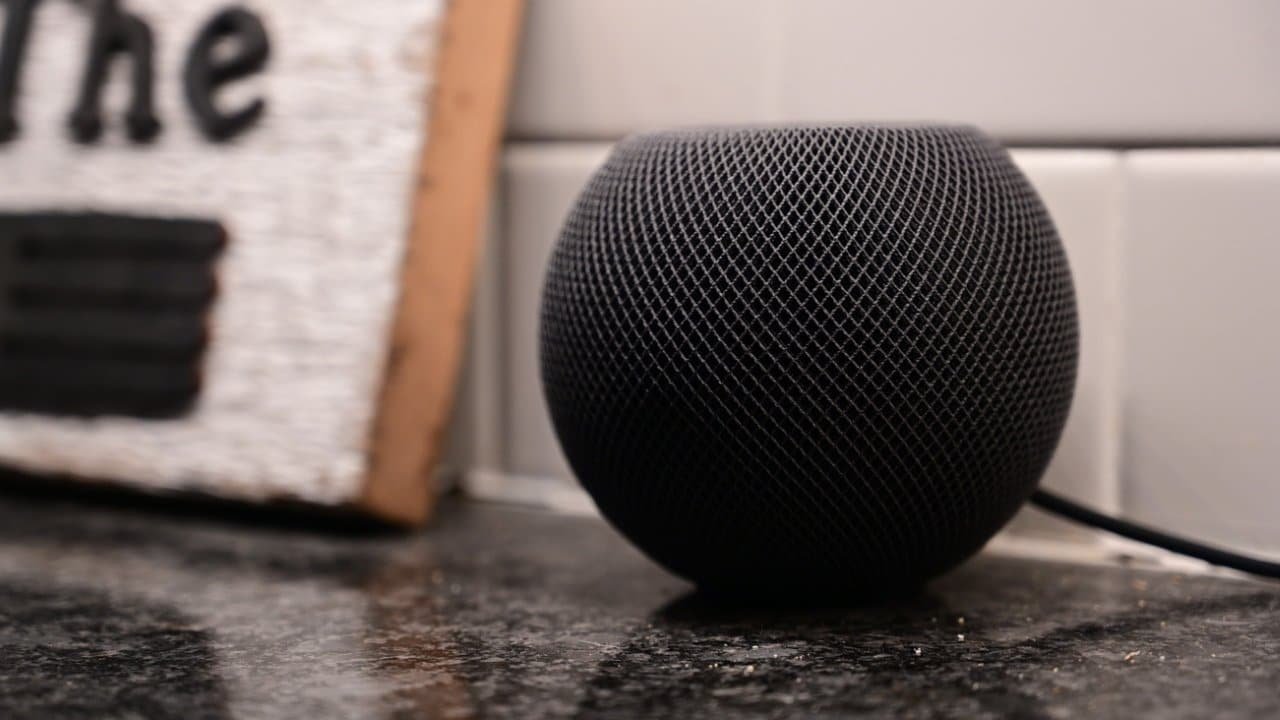
The HomePod mini will be updated to the most recent beta. To acquire the newest beta software as it becomes available, turn on Automatic Updates (seen on the preceding page). Because this is a beta software product, you may encounter flaws or glitches.
How To download HomePod Software 16 Public Beta With Apple iPhone
Apple Insider

You may use the Apple Feedback Assistant app to report any issues you encounter. You may also use a USB-C cable to reset your HomePod mini to factory settings.

Here was the wrap-up on how to download HomePod Software 16 Public Beta with Apple iPhone.

Also Read: How To Factory Reset Any Windows 11 PC Or Laptop [Step-by-Step Guide]

Enjoyed this story?Share it with your friends
WhatsAppLinkedInXFacebookEmail
See more TSA Mag stories on GoogleAdd us as a preferred source and our stories will show up more often in your Top Stories.
GAdd The Second Angle as a preferred source on Google
ShareSend
Tweet
Previous Post

Directors Best Work: Satyajit Ray

Next Post

‘How can Rahul unite country when he has failed to unite DKS and Siddaramaiah?’

Related Posts

LinkedIn logo sculpture at the LinkedIn office in Mountain View
Technology

How to Remove a Job Post on LinkedIn: Close It on Desktop or App

LinkedIn job posts cannot be deleted, only closed. Step-by-step instructions to close a job post on desktop and the LinkedIn...

Read moreDetails
10 Useful Gadgets for Everyday Life in India (2026 Picks)
Technology

10 Useful Gadgets for Everyday Life in India (2026 Picks)

Useful gadgets for everyday life in India: 65W GaN charger, power bank, smart plug, JioTag, Kindle and more, with prices...

Read moreDetails
Person checking a laptop screen for signs that their email address was exposed in a data breach
Technology

How to Check If Your Email Was in a Data Breach (2026 Guide)

How to check if your email was in a data breach using Have I Been Pwned, Google, Apple and Mozilla...

Read moreDetails
Customer scanning a UPI QR code with a smartphone to make a small payment
Technology

What Is UPI Lite Limit in 2026? Wallet, Payment Caps and Setup

What is UPI Lite limit in 2026: Rs 1,000 per payment and Rs 5,000 balance. How to enable it, auto...

Read moreDetails
Smartphone showing mobile network settings used to add an eSIM in India
Technology

How to Activate eSIM in Jio, Airtel and Vi: Step-by-Step Guide

How to activate eSIM in Jio, Airtel and Vi: check phone support, follow official app steps, know the charges, switch...

Read moreDetails
10 Best Free Productivity Apps in 2026 and What Each Plan Offers
Technology

10 Best Free Productivity Apps in 2026 and What Each Plan Offers

The best free productivity apps in 2026, including Notion, Todoist, Trello and Obsidian, with free plan limits checked on each...

Read moreDetails
Load More
Next Post
‘How can Rahul unite country when he has failed to unite DKS and Siddaramaiah?’

‘How can Rahul unite country when he has failed to unite DKS and Siddaramaiah?’

About

The Second Angle

The Second Angle (TSA Mag) is an infotainment and lifestyle magazine covering entertainment, travel, technology, health, education and finance.

Important Links

  • About The Second Angle
  • Advertise With Us
  • Editorial Policy
  • Privacy Policy
  • Terms and Conditions
  • Contact Us
  • Careers
  • Newsletter

Explore

  • Infotainment
  • Entertainment
  • Buzz
  • Education
  • Travel
  • Finance
  • Healthcare
  • Technology
Advertise with us

© 2017-2026. The Second Angle. All Rights Reserved. Developed and Managed by Squarebase.io

Welcome Back!

Login to your account below

Forgotten Password?

Retrieve your password

Please enter your username or email address to reset your password.

Log In
No Result
View All Result
  • Infotainment
    • Sports
    • People
    • Inspiring
  • Entertainment
    • Lifestyle
    • Home & Decoration
  • Buzz
  • Education
  • Travel
  • Finance
  • Healthcare
  • Technology

© 2017-2026. The Second Angle. All Rights Reserved. Developed and Managed by Squarebase.io

We use cookies to keep TSA fast and relevant. Read our Privacy Policy.