
• About   |
  • Advertise |
  • Contact Us
No Result
View All Result
The Second Angle (TSA Magazine)
Advertise
  • Infotainment
    • Sports
    • People
    • Inspiring
  • Entertainment
    • Lifestyle
    • Home & Decoration
  • Buzz
  • Education
  • Travel
  • Finance
  • Healthcare
  • Technology
The Second Angle
No Result
View All Result
  • Infotainment
  • Entertainment
  • Buzz
  • Education
  • Travel
  • Finance
  • Healthcare
  • Technology
Advertisement Advertisement Advertisement
ADVERTISEMENT
Home Technology

How To Install And Run Android 12L On Your PC

The Mountain View tech giants have unveiled Android 12 for large screens. Here is how to install and run android 12L on your PC.

by TSA Desk
November 22, 2022
in Technology
Reading Time: 4 mins read
How To Install And Run Android 12L On Your PC

Esper Blog

Share on FacebookShare on WhatsApp
Advertisement Advertisement Advertisement
ADVERTISEMENT
5 min readGAdd The Second Angle as a preferred source on Google
Key takeaways
Technology as a whole is constantly pushing forward into new territories.While Chrome OS Flex was one such example, another is Bliss OS, an open-source Android-based OS that was just published.In the shape of the new Android 12L, the Mountain View tech giant unveiled Android 12 for big-screen phones, such as foldable, tablets, and Chromebooks.

Technology as a whole is constantly pushing forward into new territories. However, this means that older hardware will gradually become less performant when running newer operating systems. However, there are a variety of methods for making computers run faster. Here in this article, we will be discussing how to install and run android 12L on your pc. Read on to find out.

While Chrome OS Flex was one such example, another is Bliss OS, an open-source Android-based OS that was just published. Fortunately, Bliss OS 15 has been launched as an alpha version, bringing Android 12L to PC users. 

In the shape of the new Android 12L, the Mountain View tech giant unveiled Android 12 for big-screen phones, such as foldable, tablets, and Chromebooks. For the time being, the Android 12L is still in development and is only available to app developers for testing. We’re all eager to try it out and can’t wait for the update to arrive on our smartphones. 
How To Hide Taskbar In Windows 11Also readHow To Hide Taskbar In Windows 11

On the other hand, why wait until you can get Android 12L up and running on your Windows PC or Mac right now? Below, we have listed easy steps on how to install and run android 12L on your pc.

Table of Contents
  • How to Install Android 12L on Your PC
  • Preparation for installing Android 12L on your PC

How to Install Android 12L on Your PC

We’ve included thorough instructions for installing Android 12L on both a Windows PC and a Mac in this article. Read on to find out.

Burning ISO Images onto the USB Drive

Let’s start by making the Bliss OS 15 build bootable on our USB stick. Regardless of whether you’re previewing the OS or installing it, you’ll need to do this. To do so, insert your pen drive into your computer and follow the steps below:

  1. To begin, open Rufus on your computer. By choosing the drop-down button next to ‘Device,’ make sure your USB drive is selected.
  2. Besides boot selection, click on the ‘Select‘ button to choose your ISO file.

    How to Install And Run Android 12L on Your PC
    image source: software keep
  3. Go to the directory in which you saved your build. In my situation, I did so on my computer’s desktop.
  4. Simply press the ‘Start‘ button. You do not need to change any other setting.
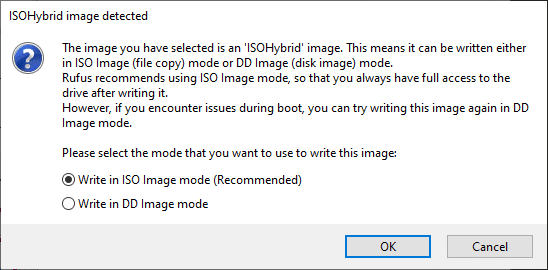
  5. A pop-up box will open, prompting you to select the writing method for the image. To continue, select ‘Write in ISO image mode’ and then OK.
    How to Install And Run Android 12L on Your PC
    image source: trendoceans
  6. To give Rufus permission to format your pen drive, press ‘OK.’
  7. The process could take anywhere from 2 to 10 minutes, depending on your computer. After that, you’ll get the message below and can press Close to eject your Pen Drive.

Preparation for installing Android 12L on your PC

If you like using the portable version of Android 12L, you can download and install it on your computer. However, keep in mind that, as previously said, early builds may and do have issues. Bluetooth, for example, does not appear to work at the present time. If you do delicate work, I recommend sticking with your original operating system. If you still want to go ahead with the installation, we’ll need to establish a separate partition on our computer first. Follow the steps below:

  1. In the Run window, press Win+R and type “diskmgmt. msc” and click Enter. Now you’ll see the Disk Management window pop up.

    How to Install And Run Android 12L on Your PC
    image source: driver easy
  2. To do so, you’ll need to either identify unallocated space on your hard disc and create a new volume or downsize an existing one. Make sure the total space is at least 50GB.
  3. Right-click unallocated space and select ‘New Simple Volume’ from the menu.

    How to Install And Run Android 12L on Your PC
    image source: windows password key
  4. Assign a letter and a name to your drive using the setup wizard. The remainder of the options can be left alone.
  5. The new partition will be created after you click Finish.

You can now install Android 12L on our computer. For more information, see the section below. Follow the steps below to install android 12L on your pc.

  1. Insert the USB drive into your PC and turn it off, just like you did in the preview section.
  2. Go into your PC’s BIOS and the boot menu to restart the pen drive. You’ll find yourself back on the Android main menu.

    How to Install And Run Android 12L on Your PC
    image source: groovy post
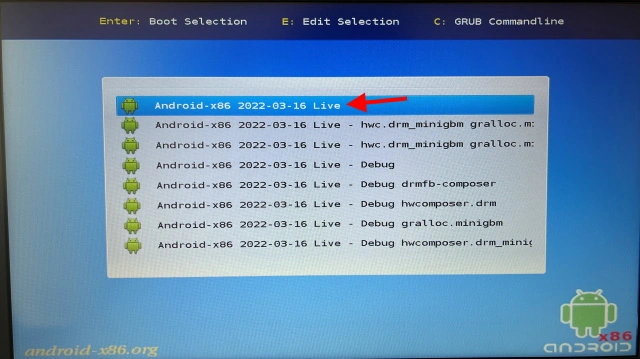
  3. This time, though, use your keyboard to scroll all the way down and pick ‘Android-x86 2022-03-16 Installation’, then hit Enter.
    How to Install And Run Android 12L on Your PC
    image source: beebalm
  4. Choose the partition that we made earlier from the selection that opens, and then press Enter to choose it.
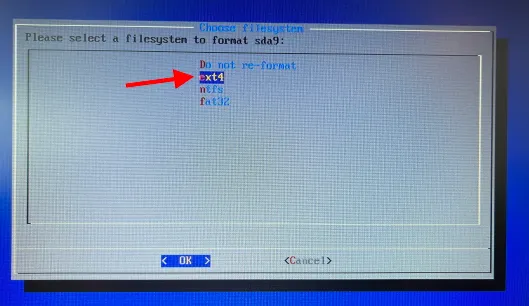
  5. Choose ‘ext4’ and hit Enter on the next screen. This will start the partition reformatting process, which may take a few minutes.
    How to Install And Run Android 12L on Your PC
    image source: click this.blog
  6. Now a couple of pop-up boxes will appear. To proceed with the installation, simply answer Yes to all of them.

It will take 15-20 minutes to complete the processing, after which you will be given the option to boot into Android or return to the BIOS. That’s all there is to it! However, keep in mind that you’ll have to enter your BIOS every time you want to switch between Windows and Android partitions. Now you can smoothly run Android 12L on your computer!

The developers of Bliss OS have done an excellent job of integrating their code with Android. 12L. When it comes to the general appearance, this build of 12L incorporates standard Android components as well as Material Elements. Steps on how to install and run android 12L on your pc are mentioned above.

Also, Check out: How To Hide Taskbar In Windows 11

Enjoyed this story?Share it with your friends
WhatsAppLinkedInXFacebookEmail
See more TSA Mag stories on GoogleAdd us as a preferred source and our stories will show up more often in your Top Stories.
GAdd The Second Angle as a preferred source on Google
ShareSend
Tweet
Previous Post

8 Moments From Imtiaz Ali Movies That Will Stay With Us Forever

Next Post

Every 11 minutes, a woman or girl is killed by an intimate partner or family member: U.N. chief Guterres

Related Posts

LinkedIn logo sculpture at the LinkedIn office in Mountain View
Technology

How to Remove a Job Post on LinkedIn: Close It on Desktop or App

LinkedIn job posts cannot be deleted, only closed. Step-by-step instructions to close a job post on desktop and the LinkedIn...

Read moreDetails
10 Useful Gadgets for Everyday Life in India (2026 Picks)
Technology

10 Useful Gadgets for Everyday Life in India (2026 Picks)

Useful gadgets for everyday life in India: 65W GaN charger, power bank, smart plug, JioTag, Kindle and more, with prices...

Read moreDetails
Person checking a laptop screen for signs that their email address was exposed in a data breach
Technology

How to Check If Your Email Was in a Data Breach (2026 Guide)

How to check if your email was in a data breach using Have I Been Pwned, Google, Apple and Mozilla...

Read moreDetails
Customer scanning a UPI QR code with a smartphone to make a small payment
Technology

What Is UPI Lite Limit in 2026? Wallet, Payment Caps and Setup

What is UPI Lite limit in 2026: Rs 1,000 per payment and Rs 5,000 balance. How to enable it, auto...

Read moreDetails
Smartphone showing mobile network settings used to add an eSIM in India
Technology

How to Activate eSIM in Jio, Airtel and Vi: Step-by-Step Guide

How to activate eSIM in Jio, Airtel and Vi: check phone support, follow official app steps, know the charges, switch...

Read moreDetails
10 Best Free Productivity Apps in 2026 and What Each Plan Offers
Technology

10 Best Free Productivity Apps in 2026 and What Each Plan Offers

The best free productivity apps in 2026, including Notion, Todoist, Trello and Obsidian, with free plan limits checked on each...

Read moreDetails
Load More
Next Post
Every 11 minutes, a woman or girl is killed by an intimate partner or family member: U.N. chief Guterres

Every 11 minutes, a woman or girl is killed by an intimate partner or family member: U.N. chief Guterres

About

The Second Angle

The Second Angle (TSA Mag) is an infotainment and lifestyle magazine covering entertainment, travel, technology, health, education and finance.

Important Links

  • About The Second Angle
  • Advertise With Us
  • Editorial Policy
  • Privacy Policy
  • Terms and Conditions
  • Contact Us
  • Careers
  • Newsletter

Explore

  • Infotainment
  • Entertainment
  • Buzz
  • Education
  • Travel
  • Finance
  • Healthcare
  • Technology
Advertise with us

© 2017-2026. The Second Angle. All Rights Reserved. Developed and Managed by Squarebase.io

Welcome Back!

Login to your account below

Forgotten Password?

Retrieve your password

Please enter your username or email address to reset your password.

Log In
No Result
View All Result
  • Infotainment
    • Sports
    • People
    • Inspiring
  • Entertainment
    • Lifestyle
    • Home & Decoration
  • Buzz
  • Education
  • Travel
  • Finance
  • Healthcare
  • Technology

© 2017-2026. The Second Angle. All Rights Reserved. Developed and Managed by Squarebase.io

We use cookies to keep TSA fast and relevant. Read our Privacy Policy.