




In the contemporary digital landscape, a meticulously crafted business card holds the power to leave an enduring impact on prospective clients and collaborators. CapCut, a popular free online video editor tool, can be a great tool for creating eye-catching business cards. In this step-by-step guide, we will walk you through the process of designing a business card using CapCut. Let’s get started!
- Step 1: Create a CapCut Account
- Step 2: Gather Your Assets
- Step 3: Open CapCut and Create a New Project
- Step 4: Import Assets and Set the Canvas
- Step 5: Customize the Background
- Step 6: Add Text and Contact Details
- Step 7: Enhance with Effects and Stickers
- Step 8: Fine-tune and Preview
- Step 9: Export and Save
- Step 10: Print and Share
- Why is CapCut Ideal for Creating Business Cards
- Conclusion
Step 1: Create a CapCut Account
If you haven’t already, go to your device’s Browser and search for “CapCut.” fill in your details and tap “Sign Up.”
Step 2: Gather Your Assets
Before starting the design process, gather the necessary assets, such as your company logo, contact details, and any other relevant visuals you want to include on your business card. Ensure that you have high-quality versions of these assets readily available.
Step 3: Open CapCut and Create a New Project

Launch CapCut on your device. Tap on the “+” icon to create a new project. Choose the desired aspect ratio for your business card. Typically, a square ratio such as 1:1 works well for business card designs.
Step 4: Import Assets and Set the Canvas
In the editing interface, tap on the media icon at the bottom of the screen to import your assets. Select the assets you gathered in Step 2 and import them into CapCut. Once imported, drag and drop your company logo onto the canvas. You can resize and reposition it as needed.
Step 5: Customize the Background
To customize the background, tap on the background icon (paintbrush icon) at the bottom of the screen. Choose a background color or import a background image that suits your design preferences. Adjust the opacity or add filters if desired.
Step 6: Add Text and Contact Details
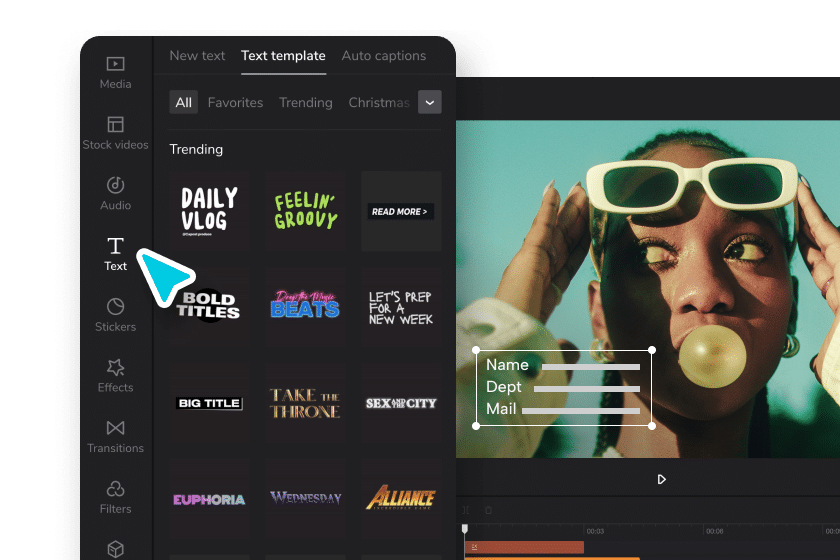
Tap on the “T” icon to add text to your business card. Enter your contact details, such as your name, job title, phone number, email address, and website. Adjust the font, size, color, and alignment to make it visually appealing and legible.
Step 7: Enhance with Effects and Stickers
CapCut offers a variety of effects and stickers to enhance your business card design. Explore the options available and add any elements that complement your brand or add visual interest. Be mindful not to overcrowd the design; simplicity often works best for business cards.
Step 8: Fine-tune and Preview

Once you’ve added all the necessary elements, fine-tune the design. Adjust each element’s position, size, and appearance to achieve a balanced and visually appealing layout. Use the preview feature to see how your business card will look when it’s completed.
Step 9: Export and Save
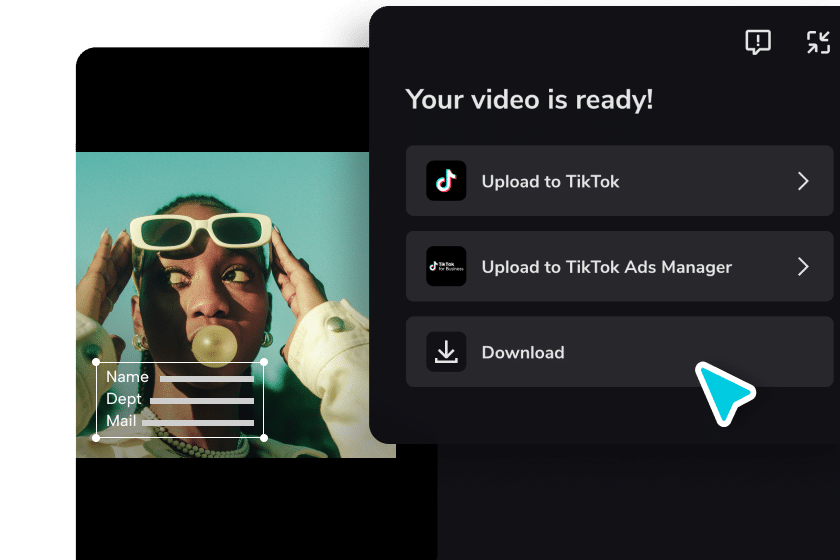
When you’re satisfied with the design, tap on the export icon (arrow pointing upwards) to save your business card. Choose the desired export settings, such as video quality and resolution. Save the video to your device.
Step 10: Print and Share
Transfer the exported business card video to your computer if needed. Open the file using video editing software or convert it to an image format compatible with printing services. Adjust the dimensions to match standard business card sizes (e.g., 3.5 x 2 inches or 88.9 x 50.8 mm) and save it as an image file. Finally, upload the image to a printing service or take it to a local print shop to get your business cards printed professionally.
Why is CapCut Ideal for Creating Business Cards

CapCut is primarily a video editing app, but it offers a range of features and tools that make it ideal for creating business cards. Here are a few reasons why CapCut is suitable for designing business cards:
- User-Friendly Interface: CapCut has a user-friendly interface that is easy to navigate, making it accessible even for users with limited design experience. The app provides a simple and intuitive platform for creating and editing videos, which can be adapted for designing business cards.
- Text and Font Options: CapCut offers various fonts, text styles, and customization options. You can choose from various fonts to create a professional look for your business card. Additionally, CapCut allows you to adjust the size, color, and position of text elements, giving you control over the design.
- Image Import and Editing: CapCut allows you to import images from your device’s gallery or from external sources. This feature lets you add a background image or a logo to your business card design. Furthermore, CapCut provides editing tools like cropping, video background remover, resizing, and adjusting the duration of images, allowing you to customize your business card layout.
- Effects and Filters: CapCut offers a range of effects, filters, overlays, and color adjustments to enhance the visual appeal of your business card. These creative options allow you to experiment with different styles and aesthetics to create a unique, eye-catching design.
- Export Options: Once you’ve finished designing your business card in CapCut, you can export the project as a video file. While a video format may not be directly suitable for printing business cards, you can easily convert the exported video into a suitable image format using a photo editing app, such as cropping it to the desired business card size.
- Integration with Other Apps: CapCut can be integrated with other photo editing apps, allowing you to combine the functionalities of different tools. For example, you can import the exported video into a photo editing app to convert it into a business card format and make any necessary adjustments before printing.
- Accessibility and Cost: CapCut is a free app available for both Android and iOS devices. Its accessibility and affordability make it convenient for individuals or small businesses looking to create professional business cards without investing in expensive design software.
Conclusion
By following this step-by-step guide, you can create a professional and visually appealing business card using CapCut. Remember to use high-quality assets, maintain a clean and balanced design, and consider the standard dimensions for business cards. Once printed, your business card will be a powerful tool to leave a lasting impression on potential clients and partners.