

• About   |
  • Submit Guest Post |
  • Contact Us
No Result
View All Result
The Second Angle (TSA Magazine)
Advertise
  • Infotainment
    • Sports
    • People
    • Inspiring
  • Entertainment
    • Lifestyle
    • Home & Decoration
  • Buzz
  • Education
  • Travel
  • Finance
  • Healthcare
  • Technology
The Second Angle
No Result
View All Result
  • Infotainment
  • Entertainment
  • Buzz
  • Education
  • Travel
  • Finance
  • Healthcare
  • Technology
Advertisement
ADVERTISEMENT
Home Technology

How to Share Screen on Microsoft Teams

On Microsoft Teams, you may share your computer screen so that everyone in the meeting can see what you're talking about while you're presenting. Here is an easy on How to share screen on Microsoft Teams.

by Syed Mohd Murad Ali
January 29, 2022
in Technology
Reading Time: 4 mins read
How to Share Screen on Microsoft Teams
Share on FacebookShare on WhatsApp
Advertisement Advertisement Advertisement
ADVERTISEMENT

Have you ever needed to give a presentation during a video conference but didn’t know where to begin? Fortunately, screen sharing may easily address this issue. In this post, we present you with an easy guide on How to Share Screen on Microsoft Teams. 

The process of presenting your computer screen to everyone else in the video conference is known as screen sharing. Focus on your presentation first, then come back to this article when you’re ready to try out Microsoft Teams screen sharing.

Microsoft Teams makes it simple to share the screen of your desktop or mobile device during online meetings. You can even select to share the entire screen of your device or just a specific app window.

Table of Contents
  • How to Share Screen on Microsoft Teams on Desktop
  • How to Share Screen on Microsoft Teams on Mobile

How to Share Screen on Microsoft Teams on Desktop

You can share your screen in a meeting using the Teams web version or the app on a Windows, Mac, Linux, or Chromebook computer.


RelatedPosts

7 Conspiracy Theories That You Would Definitely Want To Believe In

Can You Download Videos From Facebook?

7 Most Futuristic Concept Cars in the World

7 Most Futuristic Concept Cars in the World

  • To begin, open Microsoft Teams and join a meeting on your computer.
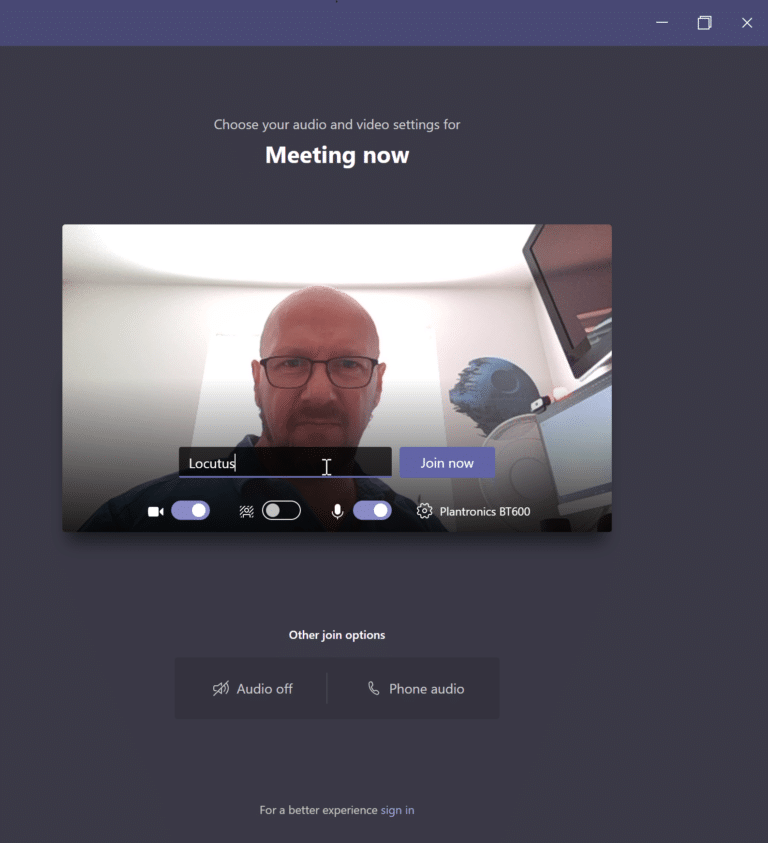
How to Share Screen on Microsoft Teams

  • Click the “Share Content” button at the top of the Teams screen during the meeting (an up-arrow icon).

How to Share Screen on Microsoft Teams

  • To the right of the Teams interface is a “Share Content” section. To share your complete computer screen, go to this section and select “Screen.” Instead, select “Window” to share a specific app’s window.
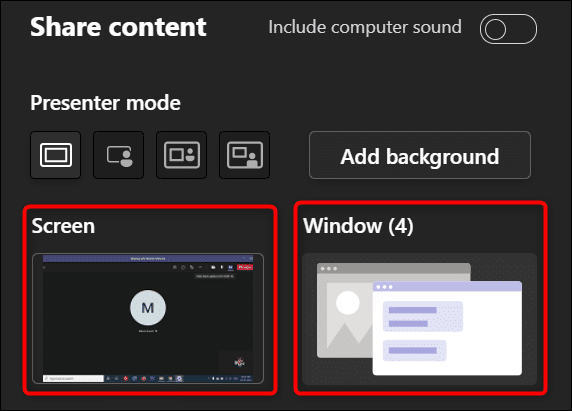
How to Share Screen on Microsoft Teams

  • Teams will start presenting your desktop screen in the meeting if you choose the “Screen” option. A red border will appear around your screen, indicating that it is being shared.
  • Select the app window you’d like to share if you choose the “Window” option.
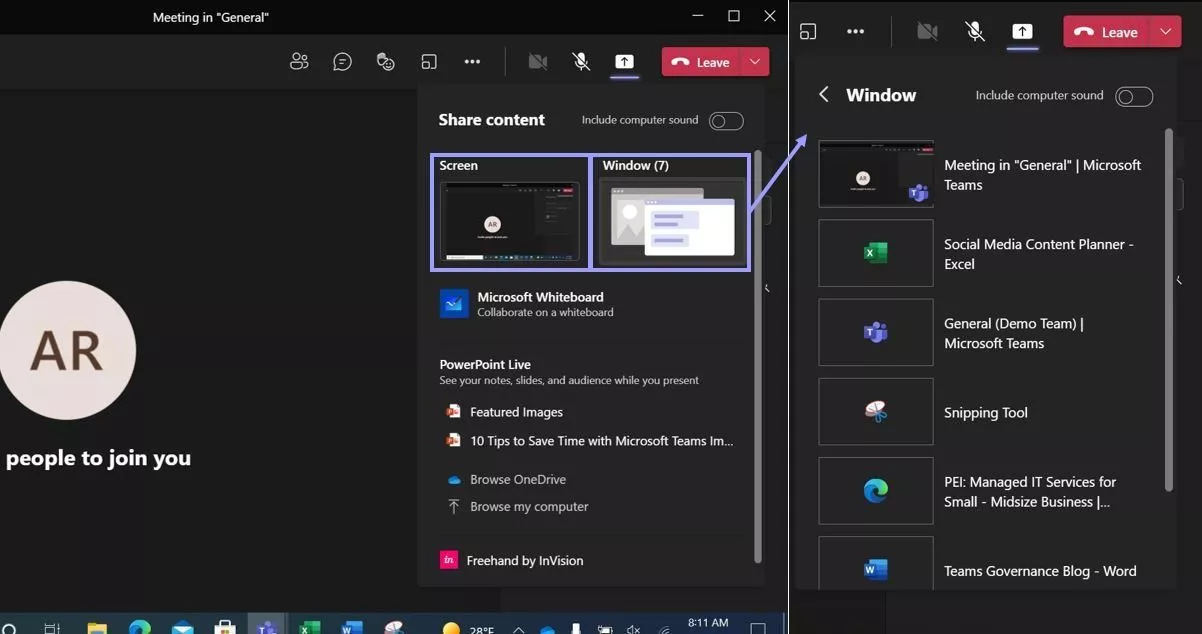
How to Share Screen on Microsoft Teams

  • When you’ve concluded your meeting and wish to discontinue screen sharing, click “Stop Presenting” at the top of the Teams interface.

That’s all there is to share screen on Microsoft Teams on desktop.

How to Share Screen on Microsoft Teams on Mobile

You can use the official Teams app on an iPhone, iPad, or Android phone to share your phone’s screen in online meetings, similar to how you can share mobile screens in Skype.

  • To begin, open the Microsoft Teams app on your smartphone. Join the meeting in the app where you’d like to show off your phone’s screen.
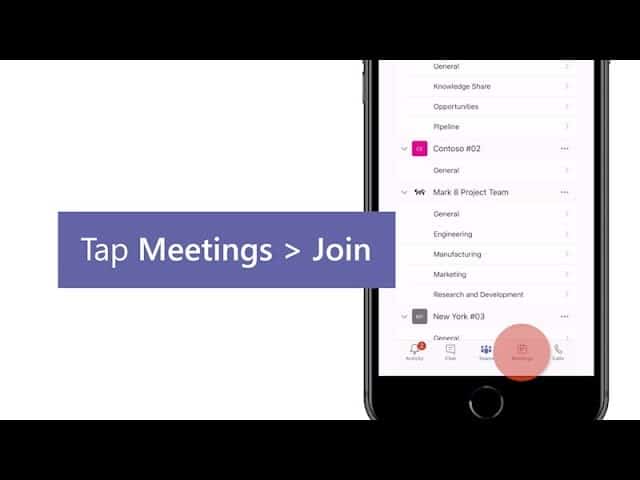
How to Share Screen on Microsoft Teams

  • Select the three dots from the bottom bar of the Teams app during the meeting.
  • Select “Share” from the three-dot menu.
  • Select “Share Screen” from the drop-down menu. Toggle on the “Audio” option to include audio in your screen share.
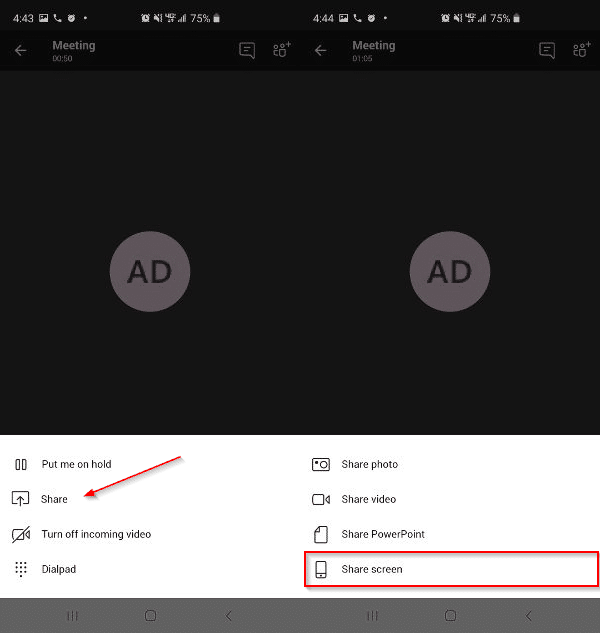
How to Share Screen on Microsoft Teams

  • If you’re using Android, you’ll see a screen called “Display Over Other Apps.” Locate “Teams” and tap it. Then select “Allow Display Over Other Apps” from the drop-down menu.
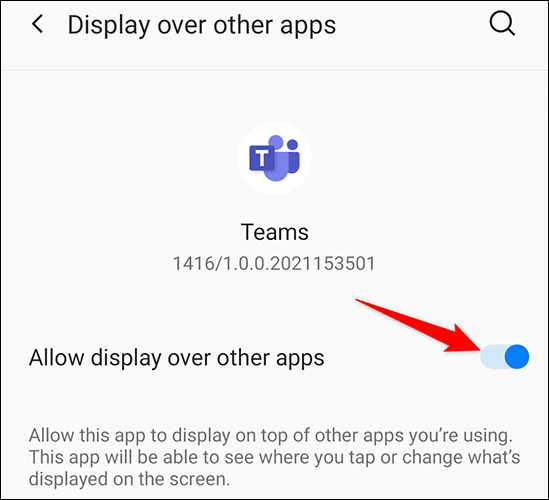
How to Share Screen on Microsoft Teams

  • If you’re using an iPhone or iPad, select “Start Broadcast.”

How to Share Screen on Microsoft Teams

  • To return to the Teams screen, press the back button. Select “Start Now” from the prompt that appears.
  • Your phone’s screen will have a red border around it, indicating that it is now being shared. Tap “Stop Presenting” to stop sharing your screen.

And that’s how you can use Microsoft Teams to share your screen and make it easier to communicate various thoughts and ideas. Hope you liked our guide on How to Share Screen on Microsoft Teams. 

Also Checkout: CISSP Certified Information Systems Security Professional Official Study Guide

Source: How to Share Screen on Microsoft Teams

ShareSendTweet
Previous Post

China’s discreet legal shift from ‘Nine-dash line’ to ‘Four sha’

Next Post

14 Beautiful Songs By Indian Indie Bands

Related Posts

7 Conspiracy Theories That You Would Definitely Want To Believe In
Technology

Can You Download Videos From Facebook?

500 million people view millions of videos on Facebook every day. Some Facebook users wish to save their favorite videos...

Read moreDetails
7 Most Futuristic Concept Cars in the World
Technology

7 Most Futuristic Concept Cars in the World

Concept cars are no longer only a showpiece to draw attention to an automotive company. This is true technological brilliance....

Read moreDetails
What Makes GPT-4 Unique From ChatGPT And How Is It Different?
Technology

What Makes GPT-4 Unique From ChatGPT And How Is It Different?

With inception of new versions and other competitive AI chatbots, there arises a question — What makes GPT-4 Unique From...

Read moreDetails
20 Most Amazing And Genius Product Packaging Designs Ever Created
Technology

20 Most Amazing And Genius Product Packaging Designs Ever Created

The majority of our items are packaged in some style. Certain products don't require as much packing because customers will...

Read moreDetails
7 Most Expensive Cars In The World
Listicles

7 Most Expensive Cars In The World

Cars have been defined as a symbol of both luxury and status. While most of us are using our cars...

Read moreDetails
Top Examples Of Interactive Marketing & How Brands Can Make The Most Of It
Business

Top Examples Of Interactive Marketing & How Brands Can Make The Most Of It

In today's fast-paced digital age, companies must continually find new ways to engage with consumers. One increasingly popular approach is...

Read moreDetails
Load More
Next Post
14 Beautiful Songs By Indian Indie Bands

14 Beautiful Songs By Indian Indie Bands

Important Links

  • About
  • Guest Post
  • Privacy Policy
  • Terms
  • Contact Us
  • Newsletter

© 2017-23. The Second Angle. All Rights Reserved. Developed and Managed by SquareBase.io

Welcome Back!

Login to your account below

Forgotten Password?

Retrieve your password

Please enter your username or email address to reset your password.

Log In
No Result
View All Result
  • Infotainment
    • Sports
    • People
    • Inspiring
  • Entertainment
    • Lifestyle
    • Home & Decoration
  • Buzz
  • Education
  • Travel
  • Finance
  • Healthcare
  • Technology

© 2017-23. The Second Angle. All Rights Reserved. Developed and Managed by SquareBase.io

This website uses cookies. By continuing to use this website you are giving consent to cookies being used. Visit our Privacy and Cookie Policy.