
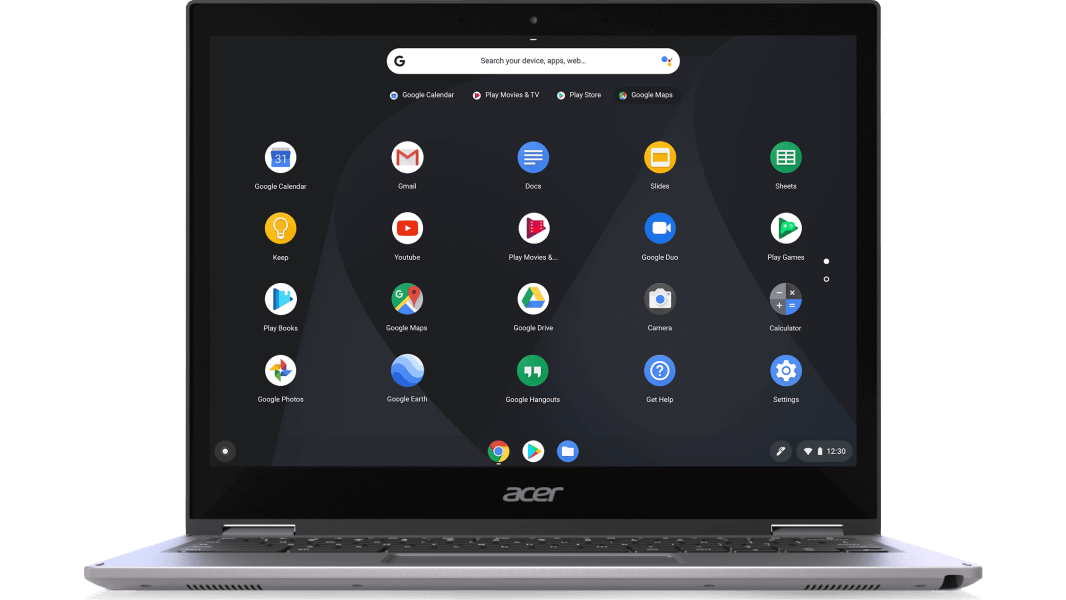

All of the top Chromebooks are strong tools simply waiting to be used to their full capacity, and after you learn a few tricks, you’ll feel like you’re getting even more bang for your buck. We’ve compiled a list of 20 best tips & tricks for chrome OS for you to try so you can get the most out of your laptop.
- 1. Use Third-Party DNS Services
- 2. Type Unicode Characters
- 3. Use Chrome Overview
- 4. See All Of Your Keyboard Shortcuts
- 5. Replace The Google Drive Cache
- 6. Take Advantage Of Chromebook Benefits
- 7. Change The Position Of Your Shelf
- 8. For Extra Storage, Use An Sd Card
- 9. Hidden Files And Folders Show
- 10. Perform A Barrel Roll
- 11. Share Your Chromebook Safely
- 12. Get A Screenshot
- 13. Use The Shortcut App
- 14. View All Of Your Nerdy System Information
- 15. Clean Up With A Power Washer
- 16. Open Your Apps Quickly
- 17. Manage Your Open Windows
- 18. Use Folders To Get Organised
- 19. Shout!! Shout! Get Everything Out!
- 20. Wrapping Things Down
- CONCLUSION
1. Use Third-Party DNS Services
There are several reasons to utilise third-party DNS when surfing the web (Domain Name Server, or the sort of “address book” for the Internet). Some believe they are quicker, while others claim they are more secure, and utilising one is a wonderful method to avoid any stupid content filters that may be in place on the servers of the folks who give you with Internet access.
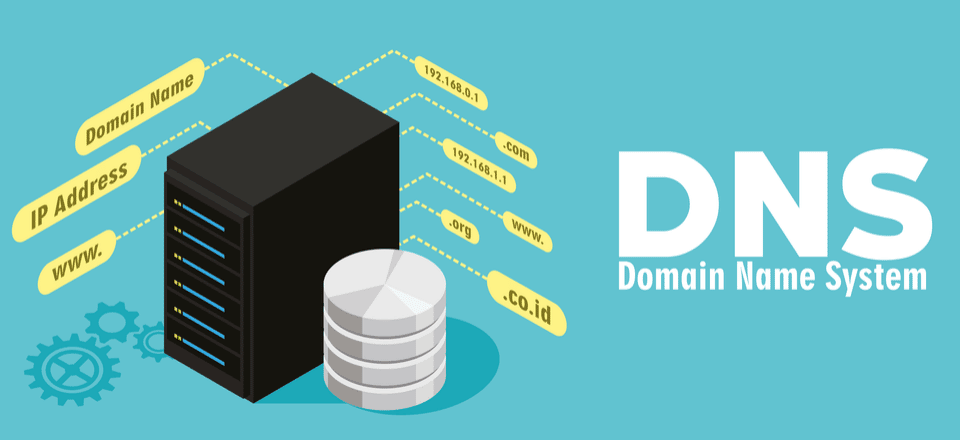
It is simple to use them on your Chromebook. Open the settings page and choose the network whose name you wish to modify. Select the network tab in the resulting window. You may select which name servers to use at the bottom. You’ll notice automated and Google options, as well as the opportunity to enter some manually
 Also readHow To Use The Smart Scale
2. Type Unicode Characters
Your Chromebook has a complete keyboard, but there are occasions when you want to enter a character that doesn’t have its own key, such as ae or Ü, or even thread them together for the ideal appearance of disapproving. You’ll need to type a Unicode character to do this.
You won’t be remembering the Unicode characters (here’s a cheat sheet), but if you know the Unicode number, inputting them is simple. Simply hit Ctrl + U + the number, and they’ll be inserted.
3. Use Chrome Overview
Your Chromebook includes an overview mode that allows you to see all open windows at a glance. If you’ve ever used a Mac, this is quite similar to Expose. It’s also equally beneficial!
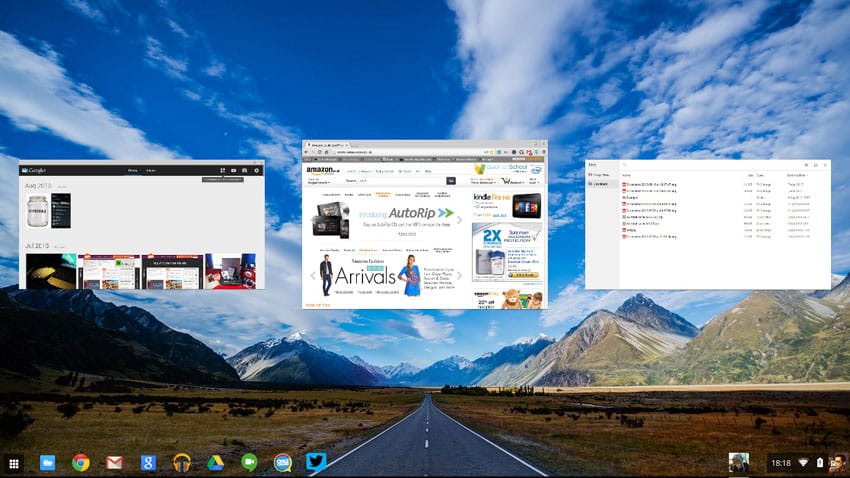
To enter the overview, just hit the button (above the 6 key) on the top row of the keyboard or swipe down from the top with three fingers on your trackpad or touchscreen. Any of the thumbnails will open that window, and clicking in a blank spot will take you back to the last window you were looking at. This is a tremendous time saver if you have a lot of windowed programmes open all the time.
4. See All Of Your Keyboard Shortcuts
You’re probably aware that Chrome OS has a plethora of useful keyboard shortcuts for things like refreshing a page or returning to your home page in the browser. In fact, there are so many that keeping track of them all is nearly difficult. It’s simple to figure out what you can accomplish so you know which ones to remember.
Ctrl + Alt +? will bring up a list of all keyboard shortcuts. You’ll be Shift + Alt + L-ing and Alt + Shift + B-ing all over the place in no time.
5. Replace The Google Drive Cache
Chromebooks may use Google Drive as additional storage, and it functions similarly to local storage. If you know a change has occurred in your stored Google Drive files but are unable to view it, you may manually refresh your Chromebook’s local Drive cache.
In the Omnibar, type chrome:/drive-internals/ and select the Clear local cache button, and the file manager will sync again the next time you use it.
6. Take Advantage Of Chromebook Benefits
The accessories that come with your Chromebook contribute to its overall worth. When you buy a Chrome OS machine, you receive more than just a computer; Google also tosses in some goodies. After purchasing your Chromebook and logging in, make sure to visit the Chromebook Perks Page to take advantage of the following offers:
The deals expire 60 days after you first link a Google account to your Chromebook, so make sure to take advantage of them before they expire. They also vary from time to time, but you’ll always find valuable items to take advantage of, such as free games and applications, longer subscription trials, and even discounts on hardware like storage drives.
7. Change The Position Of Your Shelf
The shelf (the taskbar) on your Chromebook is by default at the bottom of the screen, but you may move it to the right or left side.
Simply right-click on it and select the Shelf position option to configure your preferences.
8. For Extra Storage, Use An Sd Card
Most Chromebooks include an SD card slot, whether microSD or regular. While the SD card slot is useful for transferring photos from your camera to Google Drive or moving data between computers, it may be most useful for many users as semi-permanent external storage.

Because most Chromebooks have no more than 32GB of internal storage (unless you want to upgrade it yourself), you may find yourself wishing for more. Insert a 64GB SD card into your Chromebook and utilise it in the same way as you would local or Google Drive storage. The SD card appears in the Files app as another folder, where you may utilise it anyway you like.
9. Hidden Files And Folders Show
Folder and file names that begin with a dot (such as.Filename) are normally hidden by the file manager and are not visible. These are often files and directories that should not be edited unless you know what you’re doing.
If you open the File Manager and click Ctrl +. (period), hidden files will display with your other files and folders.
10. Perform A Barrel Roll
This one serves no function other than to be entertaining. Open a few Chromebooks and hit Ctrl + Alt + Shift + Reload.
Nothing but work and nothing but play.
11. Share Your Chromebook Safely
When you initially set up your Chromebook, it appears to be limited to your personal Google account, but one of the benefits of Chrome OS is that any computer may function with any Google account. So, when you’re on your Chromebook’s lock screen, you can click “Sign out” in the bottom left corner and allow someone else to sign in with their own Google account. They will not have access to your primary account, and all of their past activity on any other Chrome device will be set up in its own profile on this new computer.
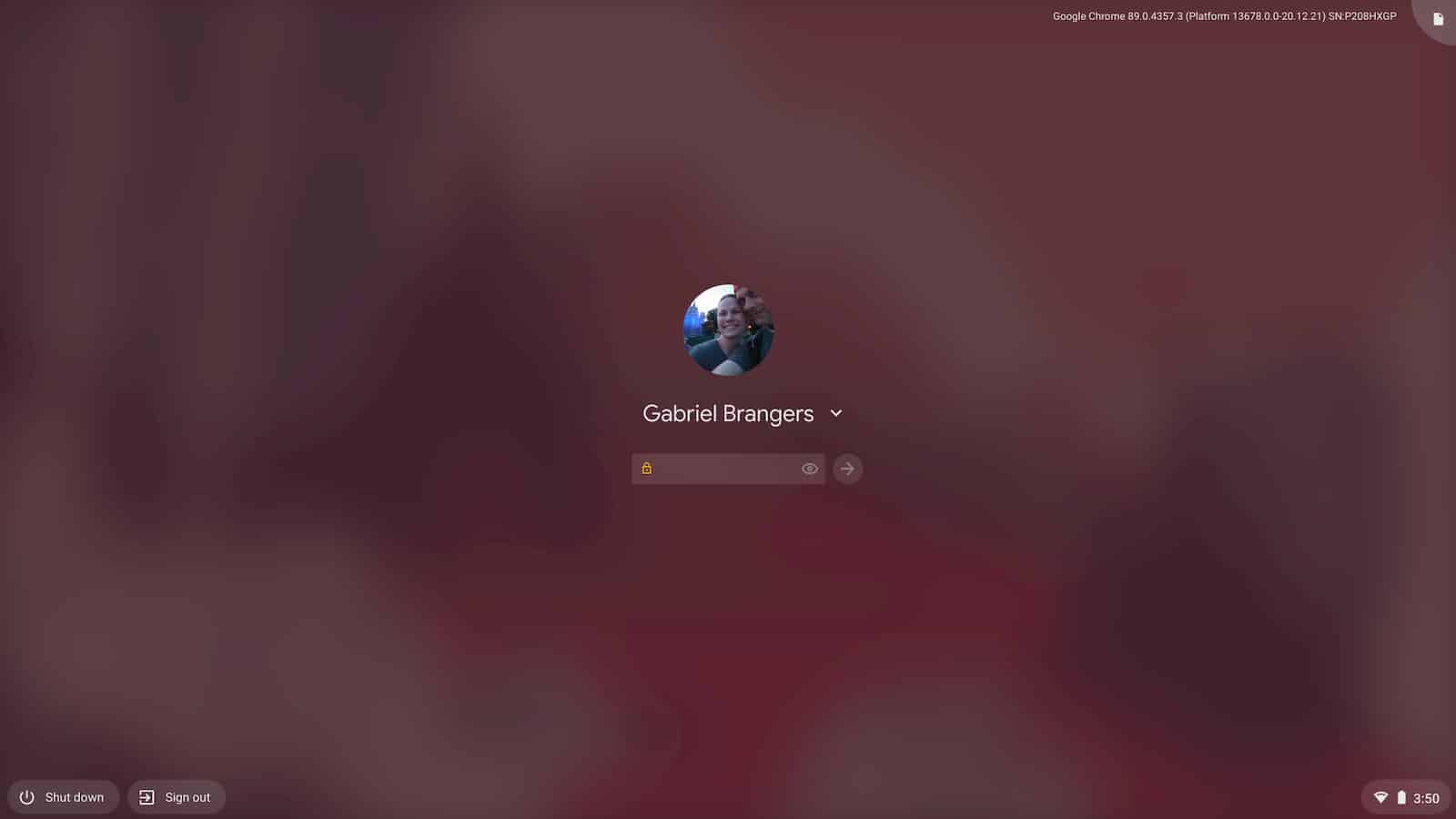
Use the guest mode if you only want to give your Chromebook to someone else for a brief amount of research or anything basic.
12. Get A Screenshot
A screenshot can be taken just as effortlessly on a Chromebook as it can on any other device. It’s quite simple to keep a piece of information for future reference or to aid someone by demonstrating something graphically. To capture the screen, hold down the control key and press the task switching key []]].
You’ll receive a desktop notice to examine the snapshot, but you can always access it later by visiting the Files app.
13. Use The Shortcut App
You may open a context menu by right-clicking (two-finger press on the trackpad) on any programme on your shelf. Aside from some system settings, such as removing it from the tray, you may utilise them by clicking on them if the programme has any contextual choices.
14. View All Of Your Nerdy System Information
Enter chrome:/system into the Omnibox to get a graphical interface with system information. You’ll find information on your CPU, RAM, current X-session, and more right here. It’s all written out in an easy-to-read format, and you’ll know all there is to know about the insides of your Chromebook.
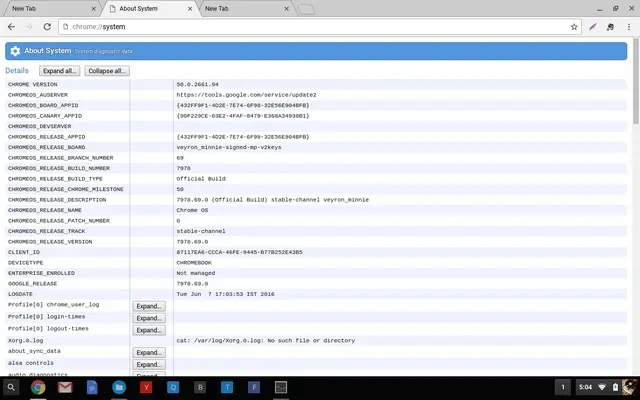
We can’t promise you’ll comprehend all you see, but everything you need (or want) to know is provided. Because it opens in a browser tab, you can easily search Google for the portions you don’t understand!
If you prefer a graphical interface, you may install François Beaufort’s Cog System Info Viewer Chrome app.
15. Clean Up With A Power Washer
It merely takes two mouse clicks in the settings to activate a function called “Powerwash” to delete your Google account and information from your Chromebook and reset it to a “like new” condition. First, go to your settings and type Powerwash into the search box, or go to advanced settings and look for it towards the bottom. Click the button, then confirm, and your Chromebook will reboot briefly, appearing exactly as it did when you first unpacked it.
16. Open Your Apps Quickly
Any app may be pinned to your Chromebook’s shelf by right-clicking (two fingers on the trackpad) on its icon while the programme is active and selecting it from the menu. Even if you close the programme, the icon will remain as a shortcut.
You can also rapidly access these applications by hitting the Alt key and the number of the programme in the line. Pressing Alt and 2 will, for example, open the second app you’ve pinned to the shelf. This works for up to nine apps, and if you often access an app, it’s a great time saver.
17. Manage Your Open Windows
While a window is active, you may use the keyboard to snap it to the edge of the screen. While the mouse pointer is in the window, press Alt and [to snap it to the left] or Alt and [to snap it to the right].
By hitting Alt and -, you may shrink any open window and maximise any window by pressing Alt and =. Repetition of either of these instructions will return the window to its previous size and location.
18. Use Folders To Get Organised
You may arrange apps into folders that appear in your launcher, just like the Android launcher. It’s useful for grouping related programmes (or games).
Simply drag one app’s icon over another to create a folder, which you can then name and open by clicking it. Grab an app and drag it into an empty spot in the launcher window to remove it from a folder.
19. Shout!! Shout! Get Everything Out!
Chromebooks do not include a Caps Lock key, however you may need to enter a word or even a phrase in ALL CAPS for whatever reason. You may hold the Shift key, but a quicker approach is to activate Caps Lock by simultaneously hitting the Search and Alt keys.
AFTER TYPING IN ALL CAPS, PRESS THE KEY COMBO A SECOND TIME, and everything will revert to normal.
20. Wrapping Things Down
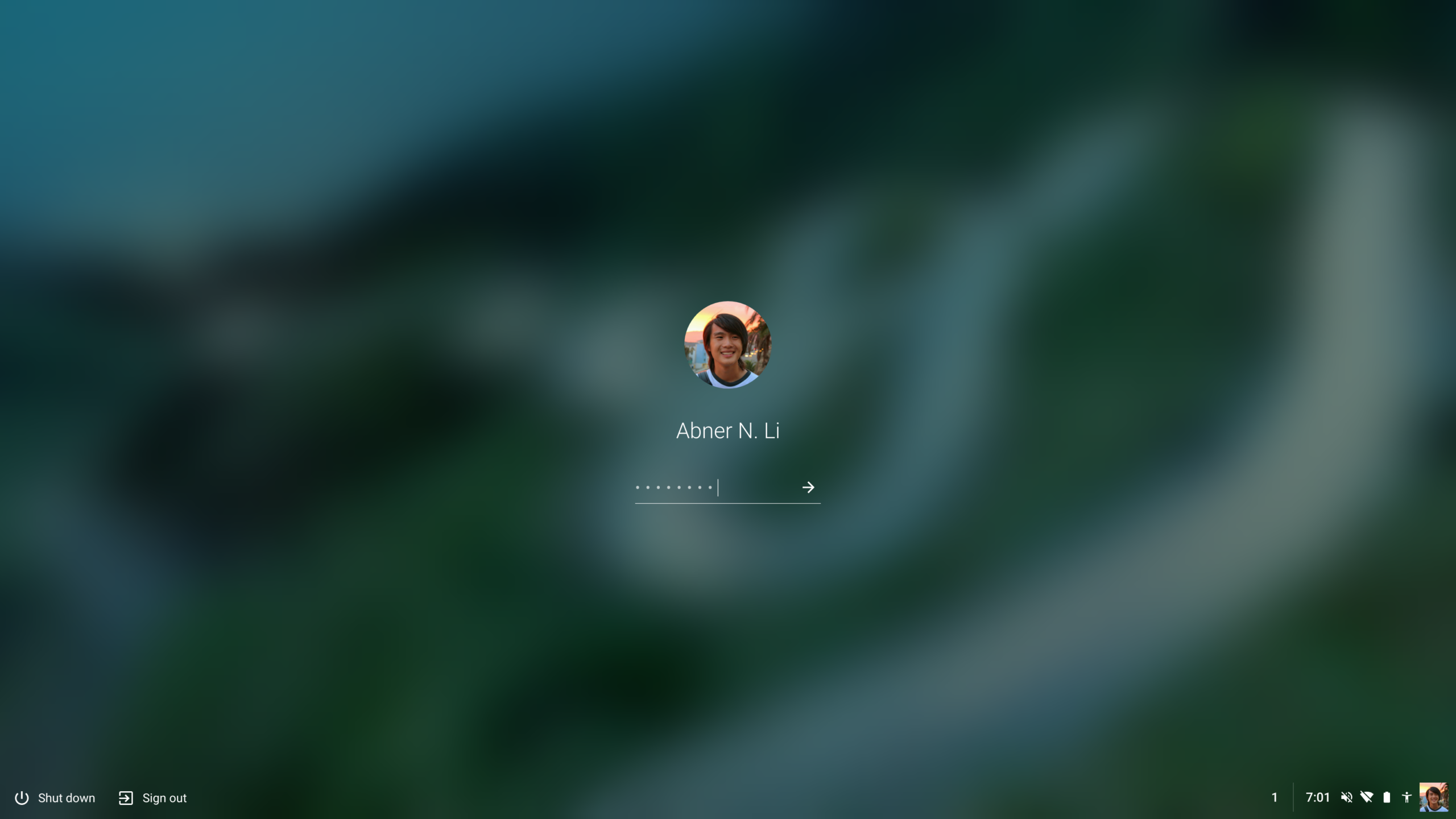
When you need to take a break and don’t want anyone tampering with your Chromebook while you’re signed in, activate the lock screen by hitting Search and L. All of your applications and windows are still open, but you’ll need to sign in again to access anything.
If you need to go any farther, pressing Ctrl Shift Q twice will close all programmes and sign you out entirely.
CONCLUSION
You can try the above specified tips to get your chrome work more efficiently and without any issues as these tricks will help you in reducing the workload and will make your chrome bugs free, try them and share your experience with us in the comment below. Here was the wrap up on best tips and tricks for Chrome OS that you must try.
Also Checkout: How To Use The Smart Scale
Source: TechiDroid