
• About   |
  • Advertise |
  • Contact Us
No Result
View All Result
The Second Angle (TSA Magazine)
Advertise
  • Infotainment
    • Sports
    • People
    • Inspiring
  • Entertainment
    • Lifestyle
    • Home & Decoration
  • Buzz
  • Education
  • Travel
  • Finance
  • Healthcare
  • Technology
The Second Angle
No Result
View All Result
  • Infotainment
  • Entertainment
  • Buzz
  • Education
  • Travel
  • Finance
  • Healthcare
  • Technology
Advertisement
ADVERTISEMENT
Home Technology

How To Block Spam Text On Your iPhone – Easiest Guide

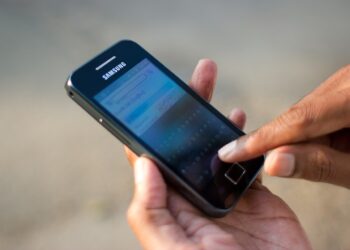
Spam texts can be extremely annoying; you receive a notification and stop what you're doing to check your phone, only to discover that someone is attempting to sell you something you don't want. Here’s a guide on How to Block Spam Text on your iPhone.

by TSA Desk
November 10, 2022
in Technology
Reading Time: 3 mins read
How To Block Spam Text On Your iPhone - Easiest Guide

Android gadget

Share on FacebookShare on WhatsApp
Advertisement Advertisement Advertisement
ADVERTISEMENT
4 min readGAdd The Second Angle as a preferred source on Google
Key takeaways
Use The Spam Filter On Your iPhone: Apple's spam filtering is a little more basic than Android's: it blocks phone numbers that you don't have...Block Specific Texts: When you receive a spam text, you can prevent that number from contacting you again.Block Spam Using Your Carrier’ Service: Most major carriers now provide spam-blocking services for phone calls, and these can be extended to texts.Use a Third-Party Spam-Blocking Service: If none of the above strategies are working for you, you can try using a third-party anti-spam service.Bottom Line: Because spammers can use multiple numbers to keep messages in your iPhone's inbox, spam texts can be extremely...

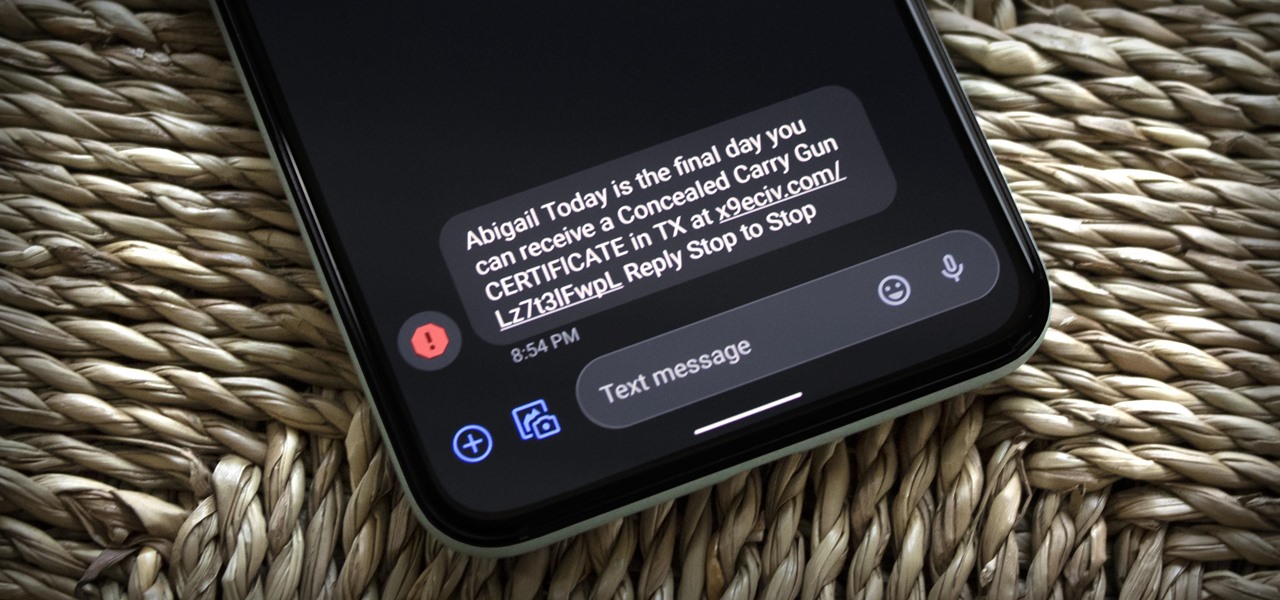
If you own an iPhone, you’ve probably been bombarded with spam texts at some point in the last few years. Indeed, it has been a persistent and aggravating issue for quite some time. And it’s only gotten worse for some users. What makes the problem even more aggravating is that spammers have gotten smarter and more sophisticated over time.

It’s inconvenient to receive an iPhone notification only to discover that it’s for a text message from an unknown number with a suspicious link. Unfortunately, robocalls have become extremely common in the last year. Many of these, if handled incorrectly, can result in anything from malware infecting a device to identity theft or blackmail.

How to Block Spam Text on your iPhone - Easiest Guide
Image Source: 9to5mac


ActionDirector App Review 2022 | Video Editor ApplicationAlso readActionDirector App Review 2022 | Video Editor Application

Of course, Apple device owners can simply delete spam texts from the iPhone’s Messages app and move on, but a more effective solution may be required when it occurs on a daily basis and on multiple occasions. There are iPhone settings that users can change to help them isolate unwanted messages from unknown senders.

Note: Top of the list is, as you probably already know, never reply to a spam text and never click on a link within a spam text. If you’re unsure whether a text is spam or legitimate, don’t respond until you’ve done some research.

Table of Contents
  • Use The Spam Filter On Your iPhone
  • Block Specific Texts
  • Block Spam Using Your Carrier’ Service
  • Use a Third-Party Spam-Blocking Service
  • Bottom Line

Use The Spam Filter On Your iPhone

Apple’s spam filtering is a little more basic than Android’s: it blocks phone numbers that you don’t have saved in your contacts list and hasn’t contacted before, which could be problematic (for example, if you’re expecting a call from a car service).
How to Block Spam Text on your iPhone - Easiest Guide
Image Source: jihosoft
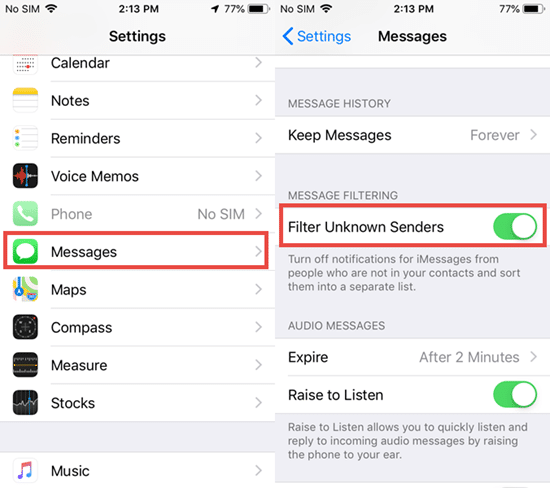
  • Launch the Settings app.
  • Scroll down to Messages > Unknown & Spam 
  • Turn on “Filter Unknown Senders.”

Block Specific Texts

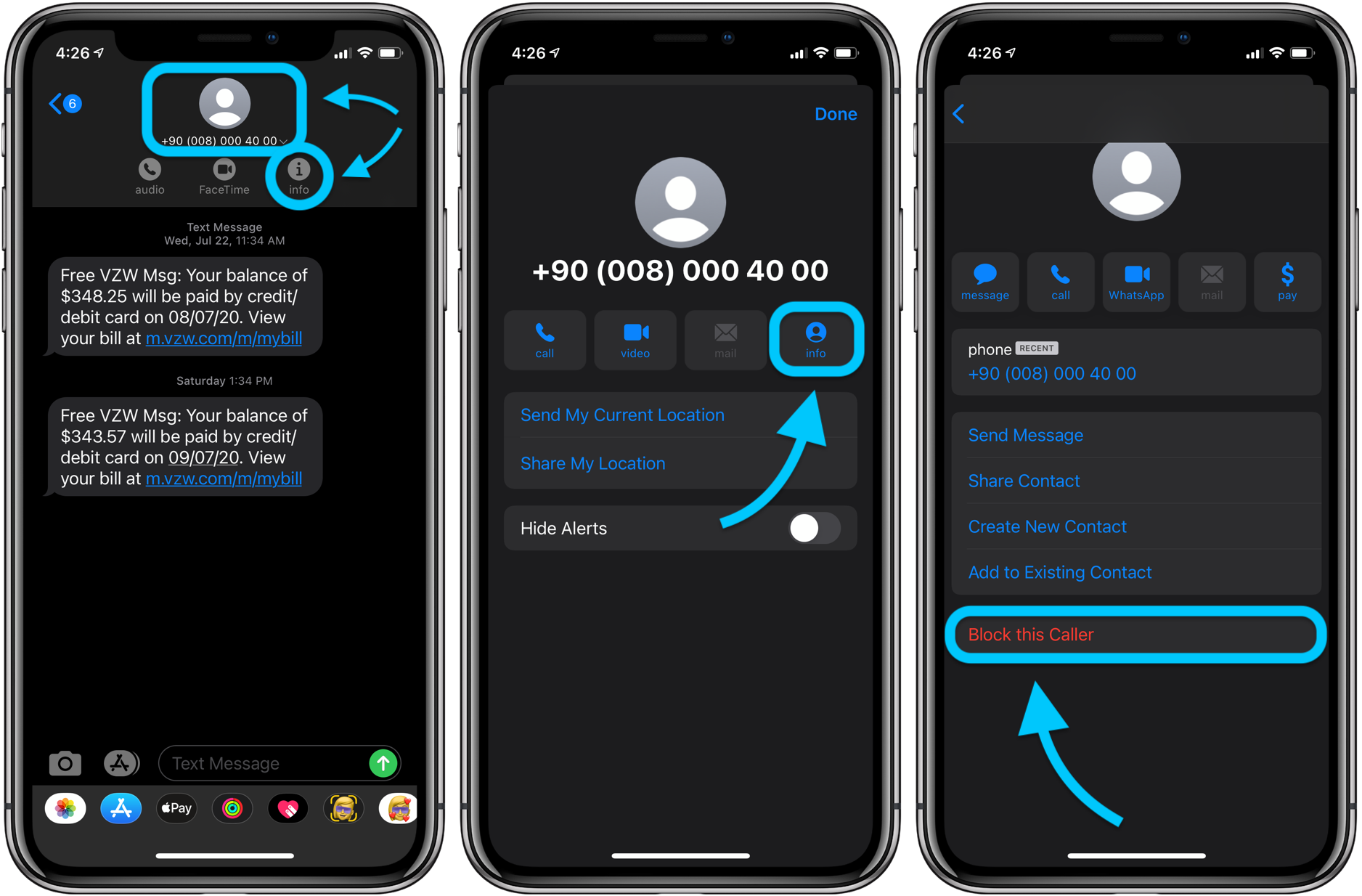
When you receive a spam text, you can prevent that number from contacting you again.

  • Open the spam text and click on the user icon at the top of the page.
  • Select the “info” icon.
  • Choose “Block this Caller.”

If you want to report a spam iMessage, look for the “Report Junk” link under the message, tap it, then tap “Delete,” and then “Report Junk.” It’s worth noting that this does not automatically block that phone number; you must do so separately.

Block Spam Using Your Carrier’ Service
How to Block Spam Text on your iPhone - Easiest Guide
Image Source: Macworld

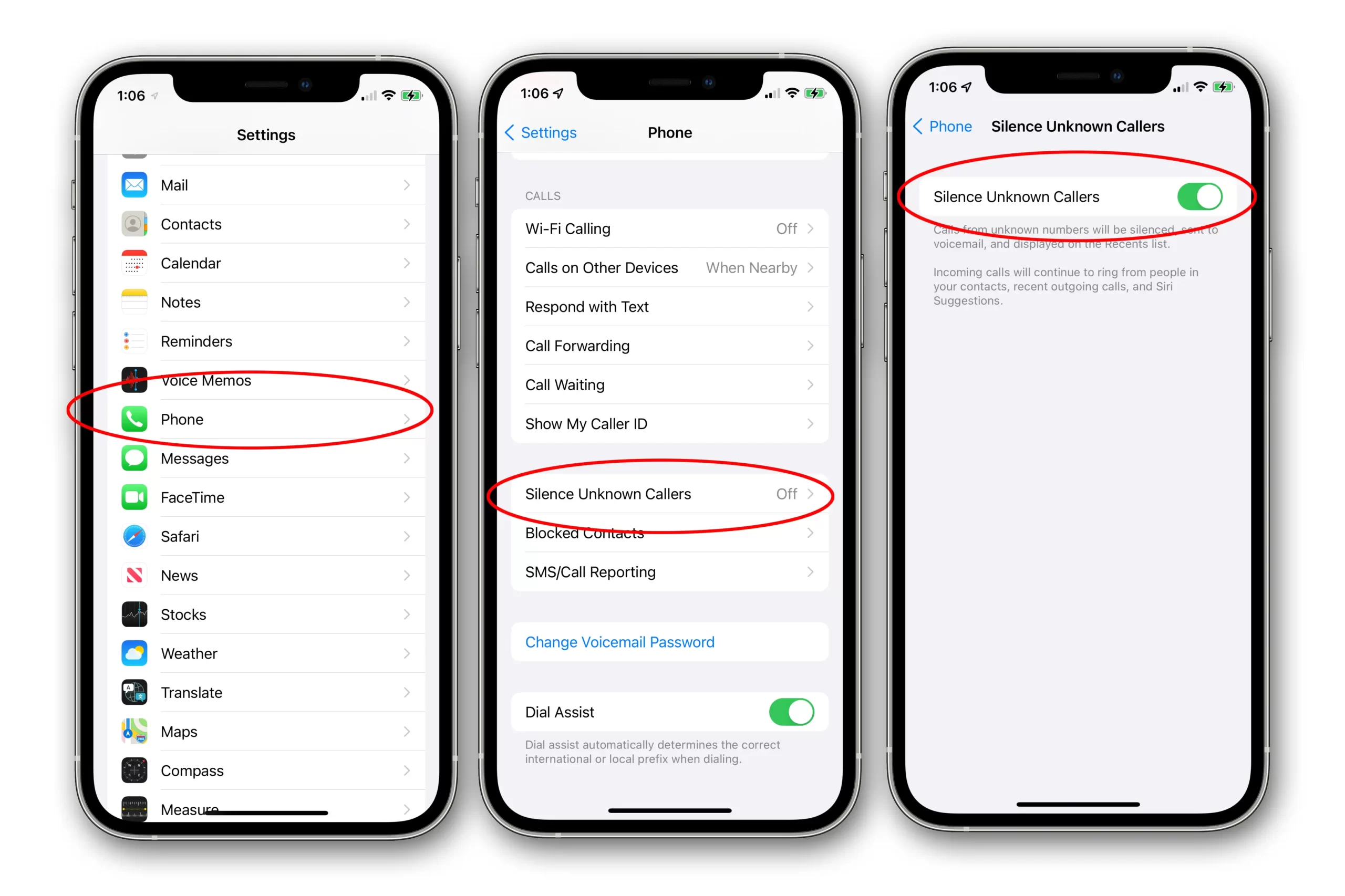
Most major carriers now provide spam-blocking services for phone calls, and these can be extended to texts. Carrier websites will provide information about AT&T, T-Mobile, and Verizon’s free and for-pay security services; if you use a different carrier, check its website.

Use a Third-Party Spam-Blocking Service

If none of the above strategies are working for you, you can try using a third-party anti-spam service. These are not provided for free. After a seven-day trial, RoboKiller costs $4.99 per month or $39.99 per year, whereas Nomorobo costs $1.99 per month per device. If you decide you need a third-party service, you can use the trial to see if it works for you before you commit.

Bottom Line

Because spammers can use multiple numbers to keep messages in your iPhone’s inbox, spam texts can be extremely difficult to permanently block. However, Apple has a trick that moves those messages outside of your main iMessage inbox, making them less annoying. Hope this guide on How to Block Spam Text on your iPhone was helpful to you. Let us know your thoughts on spam texts in the comment section below.

Also Checkout: ActionDirector App Review 2022 | Video Editor Application
Enjoyed this story?Share it with your friends
WhatsAppLinkedInXFacebookEmail
See more TSA Mag stories on GoogleAdd us as a preferred source and our stories will show up more often in your Top Stories.
GAdd The Second Angle as a preferred source on Google
ShareSend
Tweet
Previous Post

MLA, CU teachers’ union in war of words over appointment of Associate Professor

Next Post

A ‘bona fide’ carbon and gender-neutral magazine from students of law

Related Posts

A man in Bengaluru looking at his smartphone
Technology

DigiLocker Guide: How to Use It and Which Documents Are Valid

A simple DigiLocker guide for India: how to sign up, fetch your PAN, driving licence and marksheets, share them safely,...

Read moreDetails
A young person using a mobile phone
Technology

How to Block a Lost or Stolen Phone on Sanchar Saathi (CEIR)

Lost your mobile? Here is how to block a lost phone on Sanchar Saathi using CEIR, the documents you need,...

Read moreDetails
A person looking at a smartphone screen in a dark room
Technology

Digital Arrest Scam: How It Works and How to Stay Safe

A digital arrest scam uses fake police or CBI officers on video calls to scare people into paying. Learn the...

Read moreDetails
Iris scan being taken during Aadhaar biometric data collection in Kolkata
Technology

How to Lock Aadhaar Biometrics Online: Step-by-Step Guide

Learn how to lock Aadhaar biometrics on the myAadhaar portal or the new Aadhaar app, what changes after locking, and...

Read moreDetails
MyLitBag App Review 2022 | Amazing PDF Binder For Lawyers
Technology

MyLitBag App Review 2026: iPad PDF Binder for Lawyers Explained

MyLitBag app review: features, how the iPad PDF binder for lawyers works, pricing, pros and cons, and why to check...

Read moreDetails
8 Best Laptops For Teachers: Online Classes And Presentations
Technology

7 Best Laptops for Teachers in 2026: Online Classes and More

Best laptops for teachers in 2026, from MacBook Air M5 and MacBook Neo to Dell, HP and Chromebook picks, with...

Read moreDetails
Load More
Next Post
A ‘bona fide’ carbon and gender-neutral magazine from students of law

A ‘bona fide’ carbon and gender-neutral magazine from students of law

About

The Second Angle

The Second Angle (TSA Mag) is an infotainment and lifestyle magazine covering entertainment, travel, technology, health, education and finance.

Important Links

  • About The Second Angle
  • Advertise With Us
  • Editorial Policy
  • Privacy Policy
  • Terms and Conditions
  • Contact Us
  • Careers
  • Newsletter

Explore

  • Infotainment
  • Entertainment
  • Buzz
  • Education
  • Travel
  • Finance
  • Healthcare
  • Technology
Advertise with us

© 2017-2026. The Second Angle. All Rights Reserved. Developed and Managed by Squarebase.io

Welcome Back!

Login to your account below

Forgotten Password?

Retrieve your password

Please enter your username or email address to reset your password.

Log In
No Result
View All Result
  • Infotainment
    • Sports
    • People
    • Inspiring
  • Entertainment
    • Lifestyle
    • Home & Decoration
  • Buzz
  • Education
  • Travel
  • Finance
  • Healthcare
  • Technology

© 2017-2026. The Second Angle. All Rights Reserved. Developed and Managed by Squarebase.io

We use cookies to keep TSA fast and relevant. Read our Privacy Policy.