
• About   |
  • Advertise |
  • Contact Us
No Result
View All Result
The Second Angle (TSA Magazine)
Advertise
  • Infotainment
    • Sports
    • People
    • Inspiring
  • Entertainment
    • Lifestyle
    • Home & Decoration
  • Buzz
  • Education
  • Travel
  • Finance
  • Healthcare
  • Technology
The Second Angle
No Result
View All Result
  • Infotainment
  • Entertainment
  • Buzz
  • Education
  • Travel
  • Finance
  • Healthcare
  • Technology
Advertisement Advertisement Advertisement
ADVERTISEMENT
Home Technology

How To Change The Drive Letter In Windows 11(Step-By-Step Guide)

If you're running Windows 11, you're probably already aware that the file explorer shows both drives and drive letters for simple identification. Yes, you can conceal drive letters in Windows File Explorer, but what if you wish to modify the drive letter? Here’s a step by step guide on how to change the drive letter in windows 11.

by TSA Desk
March 1, 2023
in Technology
Reading Time: 3 mins read
How To Change The Drive Letter In Windows 11(Step-By-Step Guide)

Guiding Tech

Share on FacebookShare on WhatsApp
Advertisement Advertisement Advertisement
ADVERTISEMENT
3 min readGAdd The Second Angle as a preferred source on Google
Key takeaways
When you attach an external hard drive to your computer, Windows 11 assigns it a drive letter that helps computer applications and you recognize it.To alter the drive letters in Windows 11, use the Disk Management tool.We'll show you how to alter drive letters in Windows 11 step by step in this post.

When you attach an external hard drive to your computer, Windows 11 assigns it a drive letter that helps computer applications and you recognize it. Windows 11 assigns particular letters to the hard disc drive by default, such as E: F, G: and so on, but you may simply modify this. Here in this article, we will have a look at how to change the drive letter in windows 11.

To alter the drive letters in Windows 11, use the Disk Management tool. You can utilize third-party tools if you’re not comfortable with the Disk Management software. So, if you’re looking for a way to alter drive letters in Windows 11, you’ve come to the correct place.

Table of Contents
  • How to Change the Letter of a Drive in Windows 11?
  • Programs to be fixed After altering the drive letter, it no longer works-

How to Change the Letter of a Drive in Windows 11?

We’ll show you how to alter drive letters in Windows 11 step by step in this post. The procedure will be simple; simply follow the instructions.
How To Change The Default Browser On Windows 10Also readHow To Change The Default Browser On Windows 10
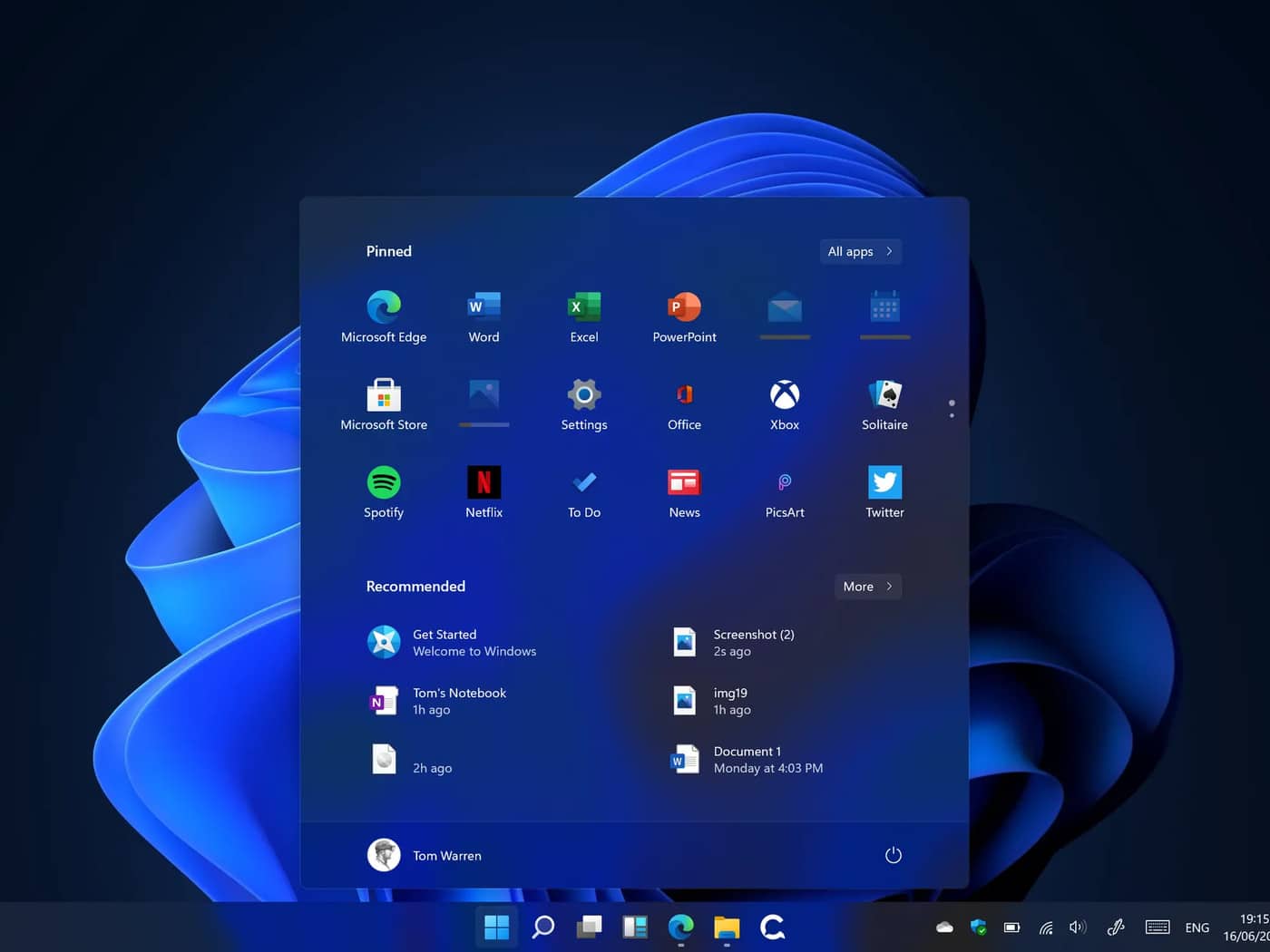
 How Can You Change the Drive Letter, In Windows 11(Step-by-Step Guide)?
image source: the verge

Important: If you change the drive letter, certain software that relies on it may stop working. The update mostly impacts your Windows 11 desktop shortcut.

  1. To begin, open Windows 11 Search and type Disk Management into the search box.
  2. Then, from the list of choices, select Create and format hard drive partitions.
  3. On your Windows 11 machine, this will launch the Disk Management application.
  4. Modify Disk Letters and Paths by right-clicking on the hard drive whose letter you wish to change.
  5. Click the Change button in the Change Drive Letters and Path dialogue box, as shown below.
  6. Select the letter from the drop-down selection for Assign the next drive letter. When you’re finished, click the Ok button.
  7. You’ll get a confirmation pop-up now, and you’ll need to click Yes to implement the changes.
  8. The Disk Management utility should show the new drive letter.
  9. When you open File Explorer now, you’ll notice that the drive letter has changed.

That concludes our discussion. You’ve completed your task. This is how you may change a drive letter in a PC running Windows 11.

Programs to be fixed After altering the drive letter, it no longer works-

As previously stated, some software that relies on drive letters to function may fail to operate if the drive letter is changed. As a result, to fix the applications that were not opening, follow the procedures below.
 How Can You Change the Drive Letter, In Windows 11(Step-by-Step Guide)?
image source: pcmag
  1. To begin, right-click on the program shortcut file that isn’t working. Select the Properties option after that.
  2. Change the shortcut’s target to the new drive letter in the target field.

For example, if chrome was previously installed on “E:\Program Files\Google\Chrome\Application\chrome.exe”, and you changed the E drive to H, you need to change the target field to “H:\Program Files\Google\Chrome\Application\chrome.exe”

3. After you’ve made your changes, click Apply and then Ok.

That concludes our discussion. You’ve completed your task. On Windows 11, this will fix the faulty shortcut. If the applications still don’t work, you’ll need to reinstall them or revert to the previous drive letter.

Changing the drive letter is rather simple, especially on the Windows 11 operating system. I hope you found this material useful! Please pass it on to your friends as well. 

Also Checkout: How To Change The Default Browser On Windows 10

Enjoyed this story?Share it with your friends
WhatsAppLinkedInXFacebookEmail
See more TSA Mag stories on GoogleAdd us as a preferred source and our stories will show up more often in your Top Stories.
GAdd The Second Angle as a preferred source on Google
ShareSend
Tweet
Previous Post

Imran Khan’s party suspends ‘Jail Bharo Tehreek’ after Pakistan’s apex court orders polls in Punjab, Khyber Pakhtunkhwa provinces

Next Post

Prince Harry and Meghan to lose second home in U.K. -tabloid

Related Posts

Person checking a laptop screen for signs that their email address was exposed in a data breach
Technology

How to Check If Your Email Was in a Data Breach (2026 Guide)

How to check if your email was in a data breach using Have I Been Pwned, Google, Apple and Mozilla...

Read moreDetails
Customer scanning a UPI QR code with a smartphone to make a small payment
Technology

What Is UPI Lite Limit in 2026? Wallet, Payment Caps and Setup

What is UPI Lite limit in 2026: Rs 1,000 per payment and Rs 5,000 balance. How to enable it, auto...

Read moreDetails
Smartphone showing mobile network settings used to add an eSIM in India
Technology

How to Activate eSIM in Jio, Airtel and Vi: Step-by-Step Guide

How to activate eSIM in Jio, Airtel and Vi: check phone support, follow official app steps, know the charges, switch...

Read moreDetails
10 Best Free Productivity Apps in 2026 and What Each Plan Offers
Technology

10 Best Free Productivity Apps in 2026 and What Each Plan Offers

The best free productivity apps in 2026, including Notion, Todoist, Trello and Obsidian, with free plan limits checked on each...

Read moreDetails
A man in Bengaluru looking at his smartphone
Technology

DigiLocker Guide: How to Use It and Which Documents Are Valid

A simple DigiLocker guide for India: how to sign up, fetch your PAN, driving licence and marksheets, share them safely,...

Read moreDetails
A young person using a mobile phone
Technology

How to Block a Lost or Stolen Phone on Sanchar Saathi (CEIR)

Lost your mobile? Here is how to block a lost phone on Sanchar Saathi using CEIR, the documents you need,...

Read moreDetails
Load More
Next Post
Prince Harry and Meghan to lose second home in U.K. -tabloid

Prince Harry and Meghan to lose second home in U.K. -tabloid

About

The Second Angle

The Second Angle (TSA Mag) is an infotainment and lifestyle magazine covering entertainment, travel, technology, health, education and finance.

Important Links

  • About The Second Angle
  • Advertise With Us
  • Editorial Policy
  • Privacy Policy
  • Terms and Conditions
  • Contact Us
  • Careers
  • Newsletter

Explore

  • Infotainment
  • Entertainment
  • Buzz
  • Education
  • Travel
  • Finance
  • Healthcare
  • Technology
Advertise with us

© 2017-2026. The Second Angle. All Rights Reserved. Developed and Managed by Squarebase.io

Welcome Back!

Login to your account below

Forgotten Password?

Retrieve your password

Please enter your username or email address to reset your password.

Log In
No Result
View All Result
  • Infotainment
    • Sports
    • People
    • Inspiring
  • Entertainment
    • Lifestyle
    • Home & Decoration
  • Buzz
  • Education
  • Travel
  • Finance
  • Healthcare
  • Technology

© 2017-2026. The Second Angle. All Rights Reserved. Developed and Managed by Squarebase.io

We use cookies to keep TSA fast and relevant. Read our Privacy Policy.