

• About   |
  • Submit Guest Post |
  • Contact Us
No Result
View All Result
The Second Angle (TSA Magazine)
Advertise
  • Infotainment
    • Sports
    • People
    • Inspiring
  • Entertainment
    • Lifestyle
    • Home & Decoration
  • Buzz
  • Education
  • Travel
  • Finance
  • Healthcare
  • Technology
The Second Angle
No Result
View All Result
  • Infotainment
  • Entertainment
  • Buzz
  • Education
  • Travel
  • Finance
  • Healthcare
  • Technology
Advertisement
ADVERTISEMENT
Home Technology

How To Hide Taskbar In Windows 11

The taskbar is an essential GUI feature of your Windows computer, providing shortcuts to the Start menu and many other apps. Let's have a look at how to hide taskbar in Windows 11.

by TSA Desk
November 21, 2022
in Technology
Reading Time: 3 mins read
How To Hide Taskbar In Windows 11

Computer world

Share on FacebookShare on WhatsApp
Advertisement Advertisement Advertisement
ADVERTISEMENT

But there’s a catch: it takes up a lot of screen real estate. So, if you’re tired of looking at the taskbar, it could be a good idea to conceal it. We’ve already discussed how to reposition your taskbar in Windows 11. However, in this piece, we’ll go through how to hide the taskbar in windows 11. 

The taskbar in Windows 11 is by default situated at the bottom of the screen and contains the Start menu, shortcuts to your favorite programs, action center icons, and clickable buttons to transition between active apps. If you don’t want it to take up too much room, you may conceal it so that it only displays when you need it.

The taskbar occupies a minor fraction of the screen in Windows 11. Fortunately, reclaiming that space is as simple as enabling the taskbar to conceal itself automatically. 

Table of Contents
  • STEPS TO HIDE TASKBAR IN WINDOWS 11 
    • To begin, navigate to the Taskbar settings in Windows 11. 
    • AUTOMATICALLY HIDE THE TASKBAR IN WINDOWS 11 

STEPS TO HIDE TASKBAR IN WINDOWS 11 

To begin, navigate to the Taskbar settings in Windows 11. 

  • To do it fast, right-click the taskbar and choose “Taskbar Settings” from the tiny menu that appears.
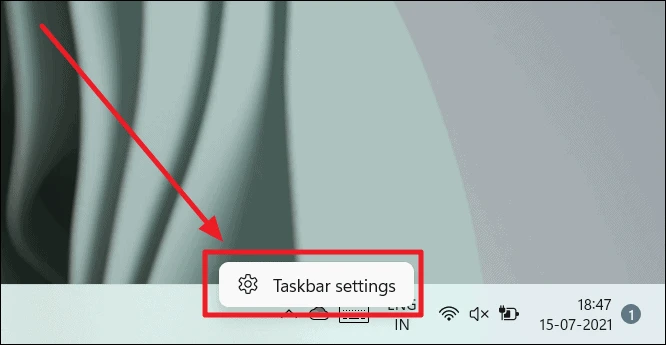
How to Hide Taskbar In Windows 11
Image Source: alltingshow
  • (Alternatively, click Windows Settings and go to Personalization > Taskbar to see the same adjustment panel.)
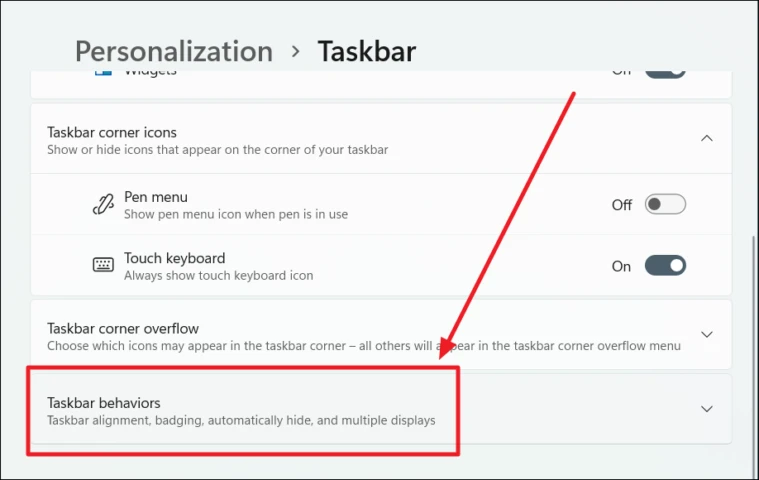
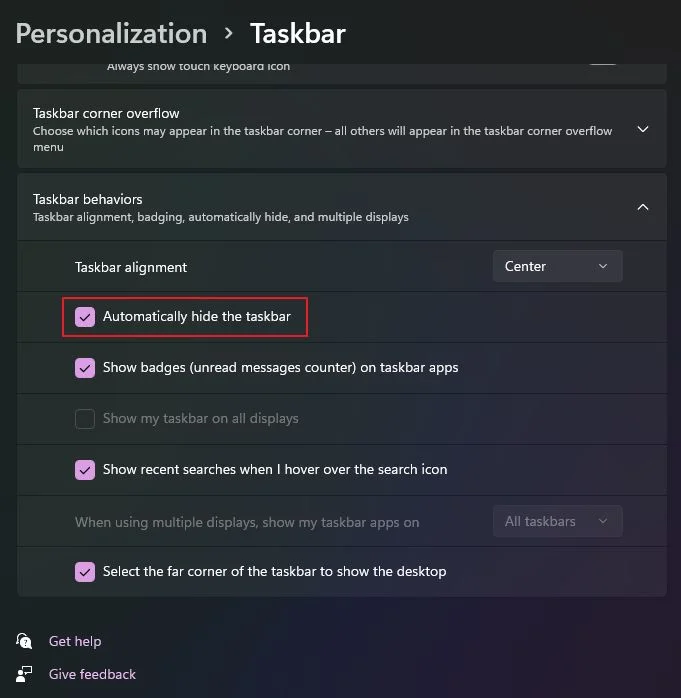
  • Click “Taskbar Behaviors” in the Taskbar settings.
  • Check the box next to “Automatically Hide the Taskbar” when the Taskbar Behaviors menu appears.
How to Hide Taskbar In Windows 11
Image Source: all things how
  • The taskbar will be removed as soon as you check the option. However, if you look closely, you’ll notice a thin line at the bottom of the screen indicating that it’s ready to appear at any time.
  • Close the Settings dialogue box. Simply slide your mouse pointer to the very bottom border of the screen to briefly reappear the Taskbar. The taskbar will appear as soon as it approaches the bottom border, allowing you to use it.

When you move your mouse away from the taskbar, it will immediately conceal itself. It’s quite useful!
RelatedPosts

7 Conspiracy Theories That You Would Definitely Want To Believe In

Can You Download Videos From Facebook?

7 Most Futuristic Concept Cars in the World

7 Most Futuristic Concept Cars in the World

If you wish to always see the taskbar, click Settings (Windows+i on the keyboard rapidly brings it up), and then go to Personalization > Taskbar > Taskbar.

AUTOMATICALLY HIDE THE TASKBAR IN WINDOWS 11 

Automatically conceal the Taskbar’ is a Taskbar behavior feature in Windows 11 that allows you to hide your taskbar automatically. Simply drag the pointer away from the taskbar and hide it. Hiding the taskbar cleans up your desktop and frees up space.
How to Hide Taskbar In Windows 11
Image Source: binary fork

If you want your taskbar to disappear automatically, you must activate it in your PC’s Taskbar settings. This is how you do it.

CONCLUSION 

The taskbar is always visible to users by default in Windows 11. You may modify this behavior by adjusting the settings in the Settings app. You may keep the taskbar icons on the left or right side of the taskbar. The taskbar customization choices in Windows 11 have changed significantly.

I’ll go through a few of them. In Windows 11, you can also choose between bright and dark modes. I observed that the Windows 11 search did not return any results for the option to hide the taskbar. That’s how to hide the taskbar in Windows 11.

But you don’t need to worry, if you want to hide the taskbar, there is an option to automatically hide the taskbar which you can do by following the above-mentioned steps.  But, still, if you are having any issues you can hide it manually by following the above steps and can easily hide your taskbar. 

Also Checkout: How To Use Fill Command In Minecraft

ShareSendTweet
Previous Post

The Album Of Raaz (2002): The Nostalgia Of Love And Melody

Next Post

Strong earthquake topples houses in Indonesia’s Java; at least 56 dead

Related Posts

7 Conspiracy Theories That You Would Definitely Want To Believe In
Technology

Can You Download Videos From Facebook?

500 million people view millions of videos on Facebook every day. Some Facebook users wish to save their favorite videos...

Read moreDetails
7 Most Futuristic Concept Cars in the World
Technology

7 Most Futuristic Concept Cars in the World

Concept cars are no longer only a showpiece to draw attention to an automotive company. This is true technological brilliance....

Read moreDetails
What Makes GPT-4 Unique From ChatGPT And How Is It Different?
Technology

What Makes GPT-4 Unique From ChatGPT And How Is It Different?

With inception of new versions and other competitive AI chatbots, there arises a question — What makes GPT-4 Unique From...

Read moreDetails
20 Most Amazing And Genius Product Packaging Designs Ever Created
Technology

20 Most Amazing And Genius Product Packaging Designs Ever Created

The majority of our items are packaged in some style. Certain products don't require as much packing because customers will...

Read moreDetails
7 Most Expensive Cars In The World
Listicles

7 Most Expensive Cars In The World

Cars have been defined as a symbol of both luxury and status. While most of us are using our cars...

Read moreDetails
Top Examples Of Interactive Marketing & How Brands Can Make The Most Of It
Business

Top Examples Of Interactive Marketing & How Brands Can Make The Most Of It

In today's fast-paced digital age, companies must continually find new ways to engage with consumers. One increasingly popular approach is...

Read moreDetails
Load More
Next Post
Strong earthquake topples houses in Indonesia’s Java; at least 56 dead

Strong earthquake topples houses in Indonesia's Java; at least 56 dead

Important Links

  • About
  • Guest Post
  • Privacy Policy
  • Terms
  • Contact Us
  • Newsletter

© 2017-23. The Second Angle. All Rights Reserved. Developed and Managed by SquareBase.io

Welcome Back!

Login to your account below

Forgotten Password?

Retrieve your password

Please enter your username or email address to reset your password.

Log In
No Result
View All Result
  • Infotainment
    • Sports
    • People
    • Inspiring
  • Entertainment
    • Lifestyle
    • Home & Decoration
  • Buzz
  • Education
  • Travel
  • Finance
  • Healthcare
  • Technology

© 2017-23. The Second Angle. All Rights Reserved. Developed and Managed by SquareBase.io

This website uses cookies. By continuing to use this website you are giving consent to cookies being used. Visit our Privacy and Cookie Policy.