
• About   |
  • Advertise |
  • Contact Us
No Result
View All Result
The Second Angle (TSA Magazine)
Advertise
  • Infotainment
    • Sports
    • People
    • Inspiring
  • Entertainment
    • Lifestyle
    • Home & Decoration
  • Buzz
  • Education
  • Travel
  • Finance
  • Healthcare
  • Technology
The Second Angle
No Result
View All Result
  • Infotainment
  • Entertainment
  • Buzz
  • Education
  • Travel
  • Finance
  • Healthcare
  • Technology
Advertisement Advertisement Advertisement
ADVERTISEMENT
Home Technology

How to Boot Android 12L on your x86 PC

The community of custom ROM developers has been thriving for years because of Android's Linux open-source-based foundation. Here’s how to Boot Android 12L on your x86 PC.

by TSA Desk
March 30, 2022
in Technology
Reading Time: 3 mins read
How to Boot Android 12L on your x86 PC
Share on FacebookShare on WhatsApp
Advertisement Advertisement Advertisement
ADVERTISEMENT
3 min readGAdd The Second Angle as a preferred source on Google
Key takeaways
How to Boot Android 12L on your x86 PC: Notably, there were two Bliss OS 15 alpha releases based on Android 12 released in December of last...Bliss OS team brings Android 12L for x86 PCs: The installation process is optimized for a UEFI-based environment with a GUID partition table (GPT) file system, although...The following is the complete changelog for the initial beta release:: Visit Bliss OS's official website to try out Android 12L on your PC and read more about the...

Android’s open-source nature allows users to customize the operating system to their specific requirements. Bliss ROMs, for example, maintain a version of Android for the ancient x86 platform called Bliss OS. The project has now reached its next milestone, with the first Android 12L beta release being available for download on virtual machines and PCs.

Table of Contents
  • How to Boot Android 12L on your x86 PC
  • Bliss OS team brings Android 12L for x86 PCs
  • The following is the complete changelog for the initial beta release:

How to Boot Android 12L on your x86 PC

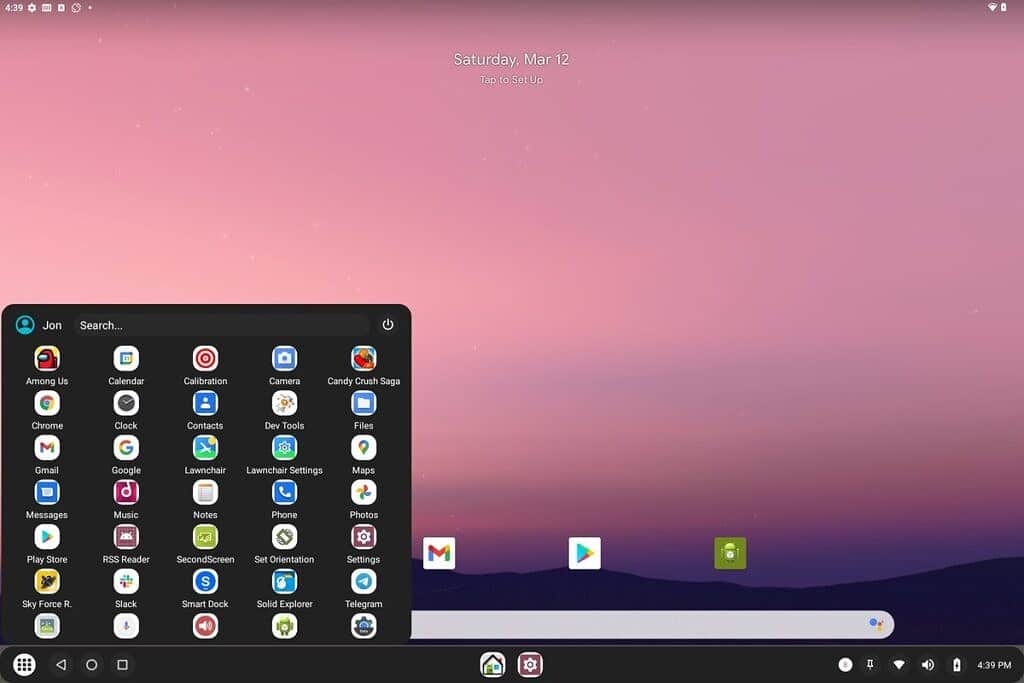
Notably, there were two Bliss OS 15 alpha releases based on Android 12 released in December of last year. While the Bliss OS codebase is being rebased on Android 12L, Jon West, aka XDA Recognized Contributor electrikjesus, has posted a work-in-progress vanilla Android-x86 version that shows the first peek of vanilla Android 12L operating on a PC. The maintainers now believe the Android-x86 release is ready for popular PC settings, therefore the first beta build is available.

Apart from the usual new features, Android 12L has also improved compatibility with desktop hardware by incorporating extra drivers and UI improvements. Although the Android-x86 project has always maintained a similar resemblance to stock Android, this custom release offers a desktop mode launcher as an alternate launcher that should be more suited for use with a keyboard and mouse.

11 Necessary Things to Consider When Buying a Gaming PC – Gaming PC Buying GuideAlso read11 Necessary Things to Consider When Buying a Gaming PC – Gaming PC Buying Guide

Recents pic.twitter.com/sgBI5WbWIU

— Jon West (@electrikjesus) March 12, 2022

Bliss OS team brings Android 12L for x86 PCs

The installation process is optimized for a UEFI-based environment with a GUID partition table (GPT) file system, although advanced users can tweak the GRUB options to let it boot on legacy platforms. The Play Store and other Google services are preinstalled in the build, so there’s no need to flash a separate GApps package.

The following is the complete changelog for the initial beta release:

  • Added Smart Dock (Desktop Mode Launcher)
  • Updated to Linux Kernel 5.10.70 (with kernel-SU)
  • Updated to Mesa 22.0.0 (meson build)
  • Added new grub entries for graphics options
  • Added Google Play Store (GMS/Gapps)
  • Fixes for libndk-translation for arm & arm64
  • Updates to media packages for wider support through libva and omx

Visit Bliss OS’s official website to try out Android 12L on your PC and read more about the project. Because installing Android on a PC is more difficult than flashing a ROM on a phone, the creators insist that you pass a short test before downloading the ISO package. Regardless, the exact download link is provided below; however, before getting your hands dirty, do your research and thoroughly read the installation instructions.

Also Checkout: 11 Necessary Things to Consider When Buying a Gaming PC – Gaming PC Buying Guide

Source: TechiDroid

Enjoyed this story?Share it with your friends
WhatsAppLinkedInXFacebookEmail
See more TSA Mag stories on GoogleAdd us as a preferred source and our stories will show up more often in your Top Stories.
GAdd The Second Angle as a preferred source on Google
ShareSend
Tweet
Previous Post

Hip Hop tracks that need to be on your playlist

Next Post

Seeding A Data Revolution In Indian Agriculture

Related Posts

Person checking a laptop screen for signs that their email address was exposed in a data breach
Technology

How to Check If Your Email Was in a Data Breach (2026 Guide)

How to check if your email was in a data breach using Have I Been Pwned, Google, Apple and Mozilla...

Read moreDetails
Customer scanning a UPI QR code with a smartphone to make a small payment
Technology

What Is UPI Lite Limit in 2026? Wallet, Payment Caps and Setup

What is UPI Lite limit in 2026: Rs 1,000 per payment and Rs 5,000 balance. How to enable it, auto...

Read moreDetails
Smartphone showing mobile network settings used to add an eSIM in India
Technology

How to Activate eSIM in Jio, Airtel and Vi: Step-by-Step Guide

How to activate eSIM in Jio, Airtel and Vi: check phone support, follow official app steps, know the charges, switch...

Read moreDetails
10 Best Free Productivity Apps in 2026 and What Each Plan Offers
Technology

10 Best Free Productivity Apps in 2026 and What Each Plan Offers

The best free productivity apps in 2026, including Notion, Todoist, Trello and Obsidian, with free plan limits checked on each...

Read moreDetails
A man in Bengaluru looking at his smartphone
Technology

DigiLocker Guide: How to Use It and Which Documents Are Valid

A simple DigiLocker guide for India: how to sign up, fetch your PAN, driving licence and marksheets, share them safely,...

Read moreDetails
A young person using a mobile phone
Technology

How to Block a Lost or Stolen Phone on Sanchar Saathi (CEIR)

Lost your mobile? Here is how to block a lost phone on Sanchar Saathi using CEIR, the documents you need,...

Read moreDetails
Load More
Next Post
Seeding A Data Revolution In Indian Agriculture

Seeding A Data Revolution In Indian Agriculture

About

The Second Angle

The Second Angle (TSA Mag) is an infotainment and lifestyle magazine covering entertainment, travel, technology, health, education and finance.

Important Links

  • About The Second Angle
  • Advertise With Us
  • Editorial Policy
  • Privacy Policy
  • Terms and Conditions
  • Contact Us
  • Careers
  • Newsletter

Explore

  • Infotainment
  • Entertainment
  • Buzz
  • Education
  • Travel
  • Finance
  • Healthcare
  • Technology
Advertise with us

© 2017-2026. The Second Angle. All Rights Reserved. Developed and Managed by Squarebase.io

Welcome Back!

Login to your account below

Forgotten Password?

Retrieve your password

Please enter your username or email address to reset your password.

Log In
No Result
View All Result
  • Infotainment
    • Sports
    • People
    • Inspiring
  • Entertainment
    • Lifestyle
    • Home & Decoration
  • Buzz
  • Education
  • Travel
  • Finance
  • Healthcare
  • Technology

© 2017-2026. The Second Angle. All Rights Reserved. Developed and Managed by Squarebase.io

We use cookies to keep TSA fast and relevant. Read our Privacy Policy.