


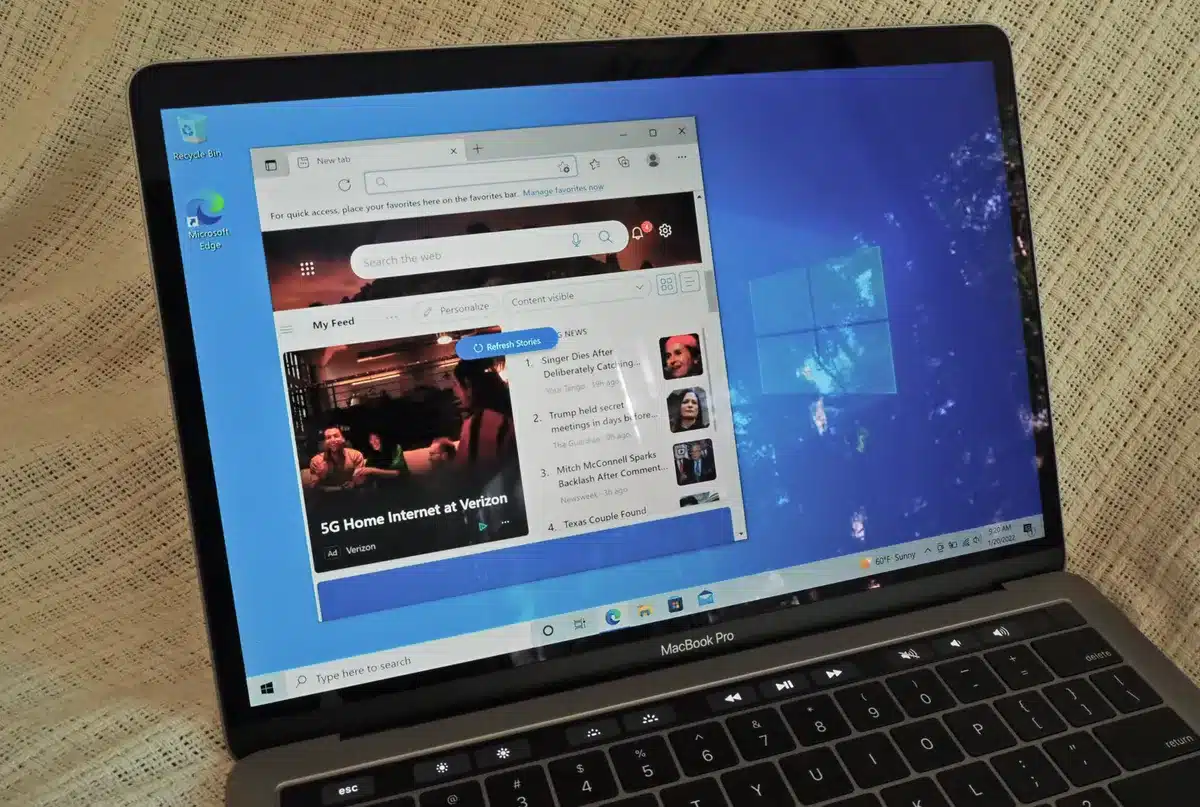

To set up a virtual machine (VM) on their Macs, many people utilize software like Parallels or VMware. VirtualBox is a fantastic, free option for accomplishing this. You may also install and set it up in a matter of minutes. In this post, we will show you how to install Windows 10 on Mac with Virtualbox VM.
Virtual machines (VMs) can run any operating system (OS) on your current computer. You may use VirtualBox for free to imitate any Windows OS, including 98, 95, and even 3.1, for disaster recovery, code testing, or simply some fun experimentation.
Setting up Windows 10 on a Mac is simple, and the system requirements are minimal; nevertheless, the more resources the machine has, the better the overall experience.
 Also read7 Best Cryptocurrency Exchange Apps
What is Virtualbox?
VirtualBox is cross-platform compatible, so while we’re showing how to install Windows 10 in Mac OS Catalina, macOS Mojave, MacOS Sierra, Mac OS X High Sierra, El Capitan, and Yosemite, you can follow along with this article on any other major operating system. This essentially means that you can use the same software and instructions to run Windows 10 on Mac OS X (High Sierra, Yosemite, Mavericks, and so on), Windows 7, and even Linux.
How to Install Virtualbox on macOS?
- To begin, get the most recent version of VirtualBox for macOS. The download will begin automatically as you click “OS X Hosts.”
- To run the installation, double-click “VirtualBox.pkg” in the new DMG file. The User Manual, as well as the Uninstall utility, can be found here.
- To continue with the installation, click “Continue.”
- Click “Change Install Location” to change where and how the VirtualBox application is installed.
- Click “Install” once you’ve got everything set up the way you want it. If prompted, enter your Mac’s password.
- Click “Install” once you’ve got everything set up the way you want it. If prompted, enter your Mac’s password.
- If you haven’t previously given your Mac permission to install Oracle programs, the installation will most likely fail at this point.
- To grant authorization, go to the top right and click the magnifying glass, then type “Security” and hit Enter. Click Applications > System Preferences > Security and Privacy as an alternative. You should see some text near the bottom of the General tab that says Oracle America, Inc. software has been banned. Reinstall after clicking “Allow.”
- This option is only available for 30 minutes following a new VirtualBox installation. Open the “Applications” folder and drag the VirtualBox icon to the Trash to uninstall it if you don’t see this information.
- To see this option, delete any leftover files, reinstall VirtualBox, and then immediately reopen the “Security and Privacy” menu.
- The setup is now complete. Since you no longer require the installation file, click “Close” and “Move to Trash.”
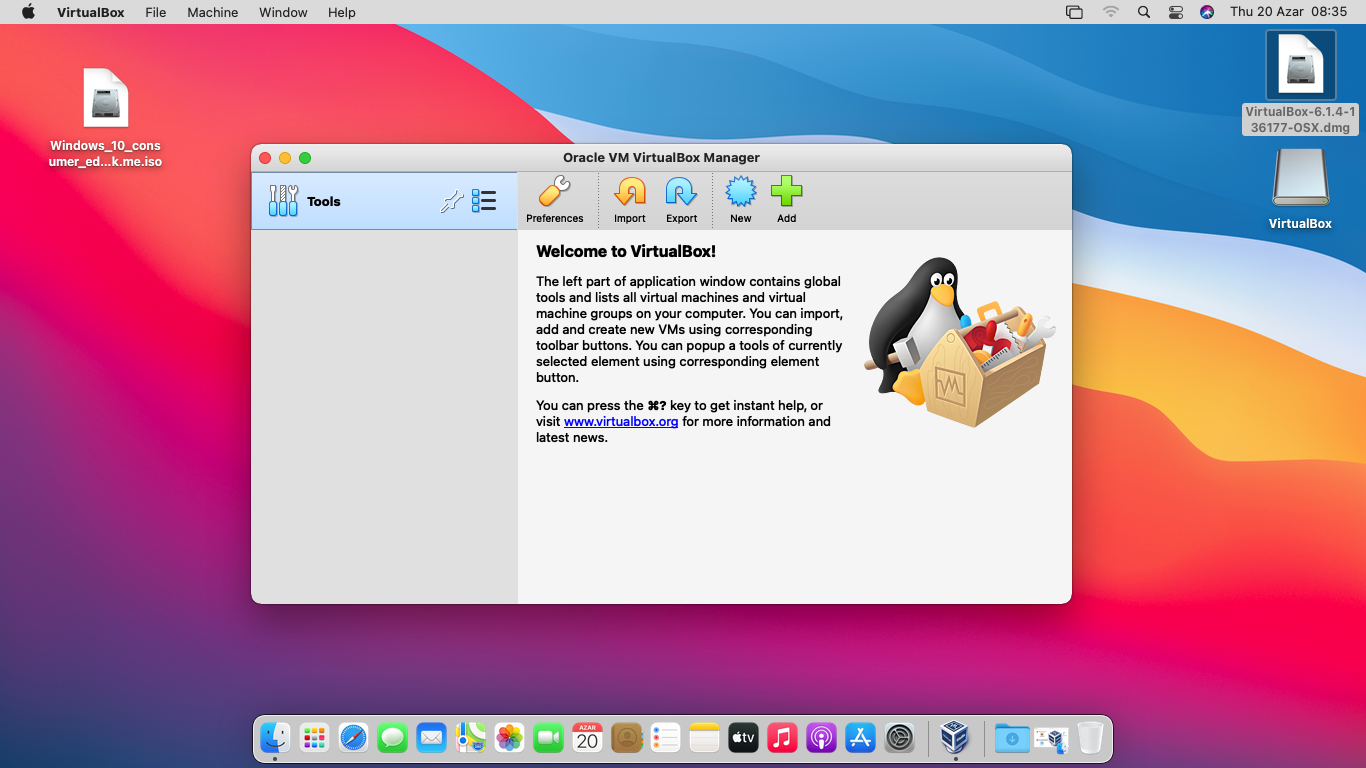
Image Source: wiki keep
How to Install Windows 10 with Virtualbox?
- It’s time to start your Windows 10 virtual machine now that you’ve installed VirtualBox on your Mac. Launch Virtual Box (using the “Applications” folder or a Spotlight search).
- Click “New” in VirtualBox.
- You have complete control over the name of your new operating system. When you type the name of any available operating system (for example, “Windows 10”), the “Version” field changes to that operating system. You can keep the VMs in a different “Machine Folder.”
- Click “Continue” when you’re ready.
- Choose how much RAM (memory) you want to give your virtual machine on the next screen, then click “Continue.” Keep in mind that if you set this too high, your Mac will run out of memory.
- The default recommended is 2,048 MB, which is sufficient for the majority of installs. However, heavier programs or apps may demand at least 2 GB. You can always update it in “Settings” afterward.
- Now you must choose the size of your VM’s hard disc if you want one at all. Because this is most likely your first VM on this machine, select the radio button next to “Create a Virtual Hard Disk Now” and then “Create.”
- The next step is to choose the sort of hard drive you want to make. Oracle’s proprietary container format “VDI (VirtualBox Disk Image)” is the default.
- However, because you’re installing a Microsoft program, you’ll need to select the “VHD (Virtual Hard Disk)” format. Then click “Continue” after selecting the radio button next to that choice.
- If you prefer a speedier setup, choose “Dynamically Allocated” on the next screen. Select “Fixed Size” and then “Continue” if you want faster performance (which we recommend).
- Finally, you must determine where your virtual machine will be stored and how much space it will require. Click “Create” if you selected “Fixed Size” in the previous step. That space will be allocated by VirtualBox.
- You’ve now completed the installation of VirtualBox and a Windows 10 virtual machine. You must, however, set up the Windows 10 OS in the same way that you would any other physical system.
- Directly from Microsoft, you may get the free Windows 10 disc image. Return to VirtualBox and select “Start” after saving the ISO file to your PC.
- If you already have the Windows 10 ISO on your computer, VirtualBox may try to recognize and pick it for you.
- Otherwise, a new window will pop up and you’ll have to do it manually. With the green arrow, select the folder.
- Click “Add” in this window. Choose the ISO file, then click “Open” and “Start.”
- Your Mac’s Windows 10 VM is now ready to use! Simply right-click the VM and select “Settings” if you wish to change any of the settings.
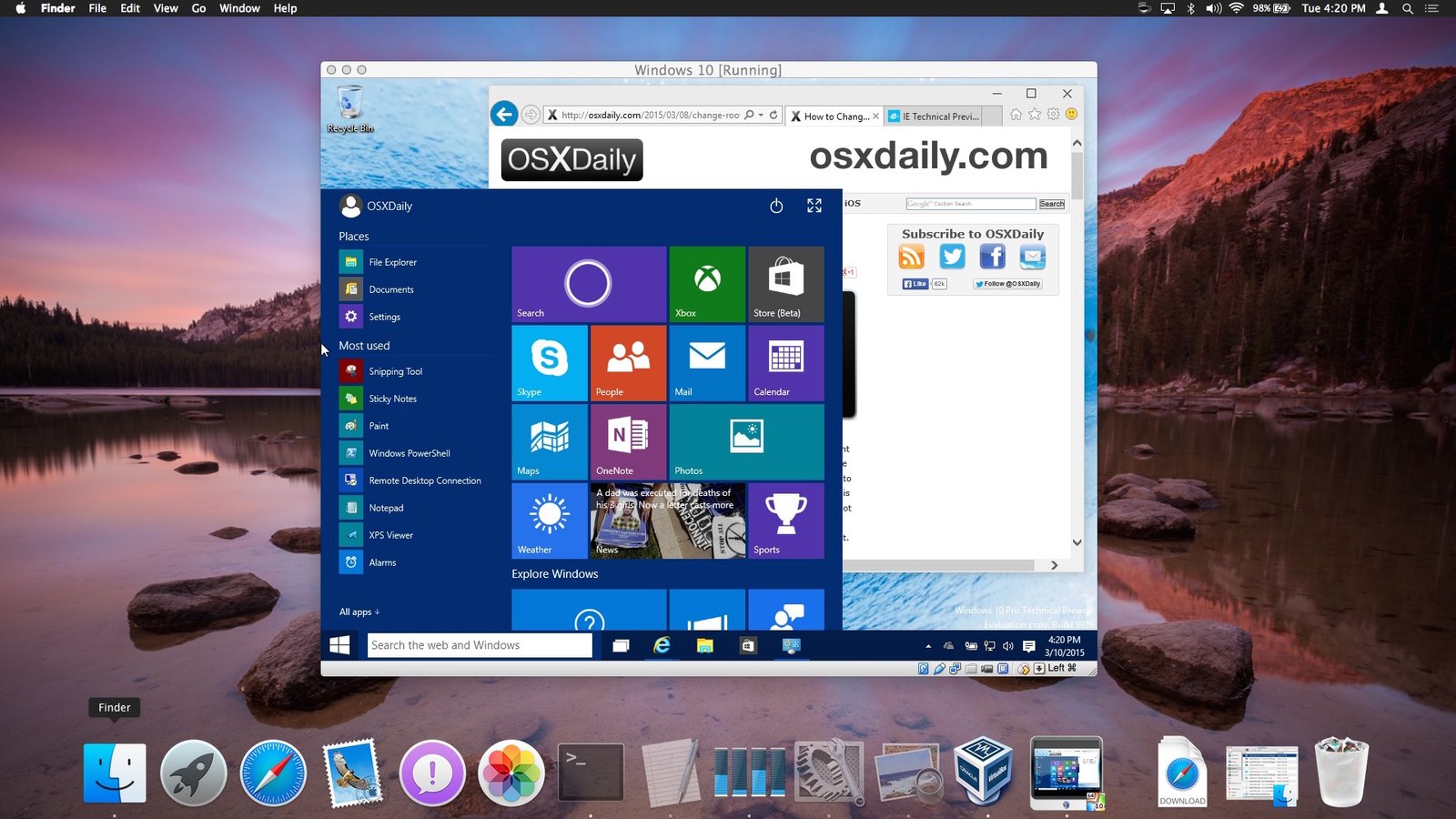
If you’re having fun using VirtualBox, you’ll be happy to know that you can run a variety of other operating systems in the virtual machine environment. If you wish to try Linux, you can use VirtualBox to run Ubuntu on your Mac, as well as several versions of Internet Explorer in multiple Windows VMs, Windows 8, Android 4, and older Mac OS X versions like Snow Leopard. For more information, see our VirtualBox section.
If you become dissatisfied with Windows 10, you may either erase the virtual machine using VirtualBox or manually delete the Windows. video file (virtual disc image) from your hard disc. Keep in mind that deleting the VM will also destroy any files you’ve produced in Windows.
Also Checkout: 8 Best Laptops For Teachers: Online Classes And Presentations